Custom icons: make the plan read like your trade
A takeoff you can read is a takeoff someone else can check. When a counter looks like the fixture it counts (a floor drain, a P-trap, a 45-elbow), the marked-up plan doubles as a legible drawing instead of a field of dots.
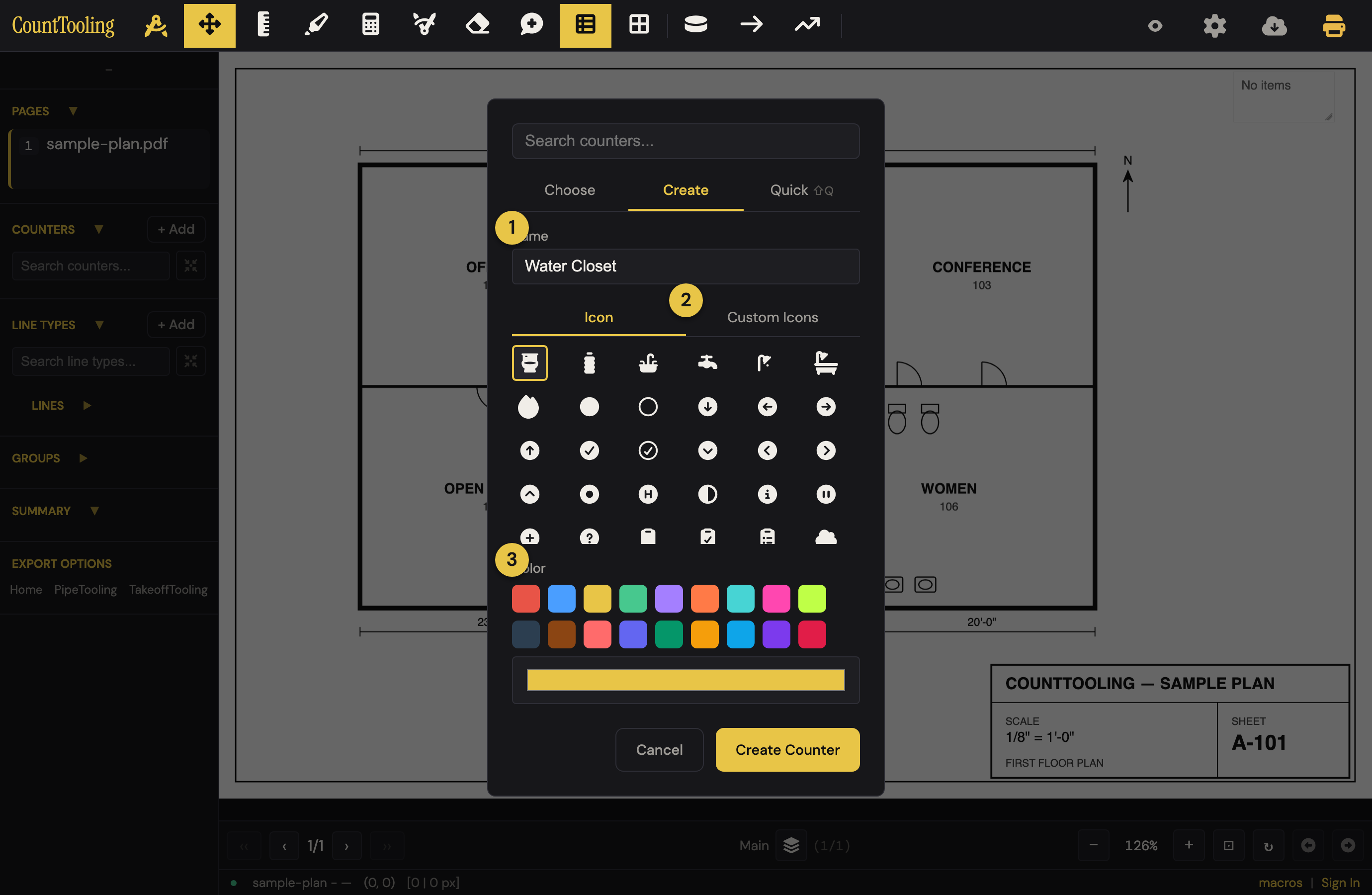
The built-in library
Create a counter and the icon grid offers the bundled set: general symbols plus a library of real trade fixtures. Use the search box to filter by name. Every icon takes the counter's color, so the same symbol can serve several types.
The Custom Icons tab groups the trade libraries under their own headings, Plumbing, Electrical, and HVAC (the M-sheet symbols: supply diffuser, return grille, RTU, VAV box, fire/smoke damper), with your project's trade on top. A counter you give a CFM to starts with the supply diffuser unless you pick another icon.
Upload your own SVG
The icon grid's + Upload cell accepts your own SVG files:
- The SVG needs at least one
path,rect,circle,ellipse, orlineelement; aviewBoxis recommended. Multiple shapes are merged into one symbol. - Uploaded icons appear under Custom Icons in the picker, available to every counter you make.
- They're included when you export a canvas, so a takeoff shared as a file still renders your symbols.
- The Custom Icons label in the picker opens a tips dialog with the format details.
Manage the library
Manage Icons (open Create Counter and click Manage icons… under the icon grid) lists every icon. No account needed: it works whether or not you're signed in, on desktop and on a phone or tablet alike.
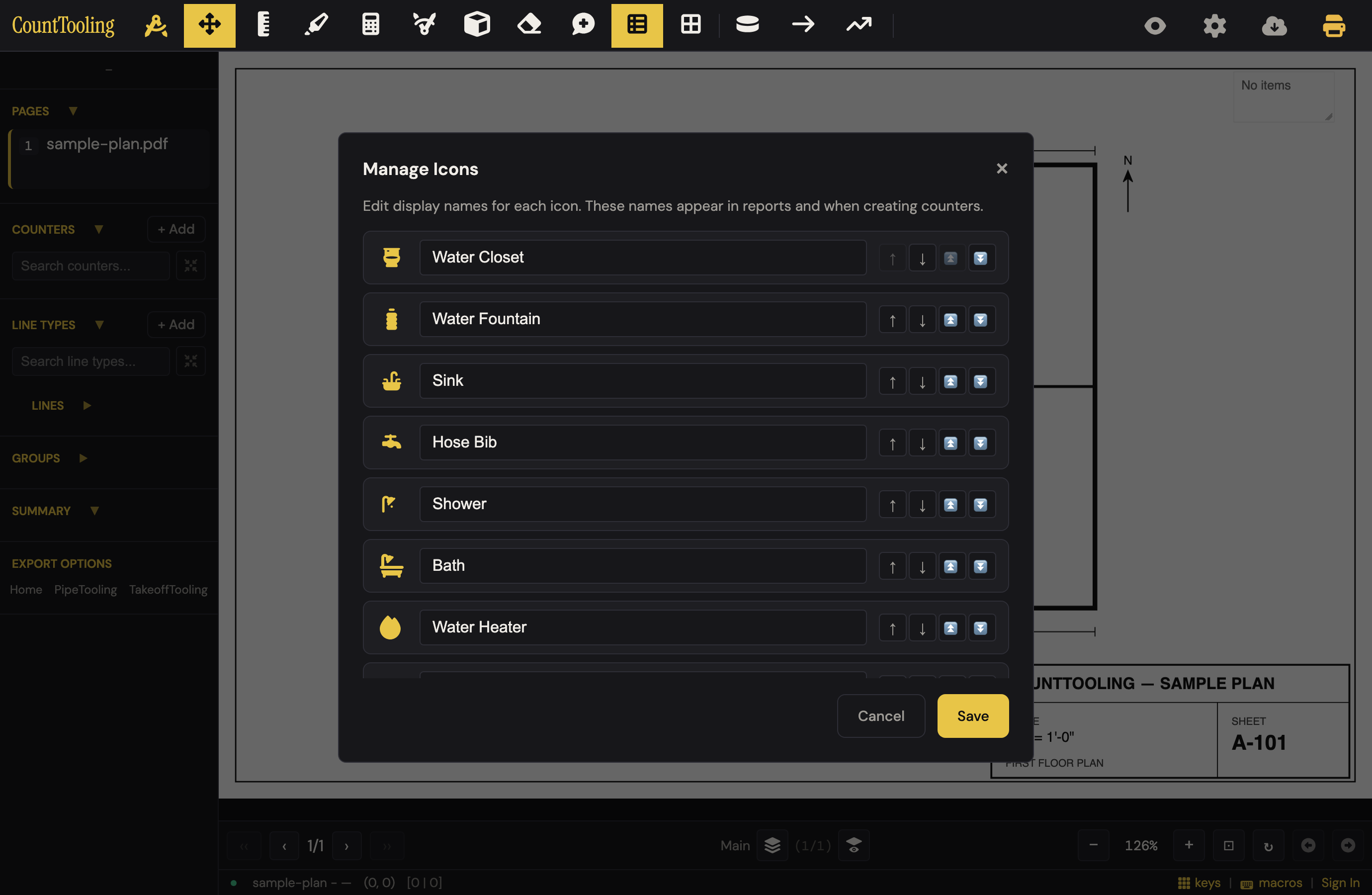
- Rename any icon, built-in or uploaded, so it matches your vocabulary.
- Reorder so your daily icons sit at the top of the picker.
- Edit mode lets you select uploaded icons and delete the ones you no longer use.
Your icons follow your account
Uploaded icons are stored per browser, and when you save your Artboard to the cloud, your custom icon library rides along, so signing in on another device brings your symbols with your palette.
Next: Counting fixtures with counters for the counting workflow itself.