How your work is saved (and how to tell)
An afternoon of counting is real money. CountTooling treats it that way: your work is saved continuously, in more than one place, and the app always shows you where things stand.
What's happening automatically
- Auto-save every few seconds. Whenever something changes, the project saves, to the cloud when you're signed in, locally otherwise. There is no Save button to forget.
- Local backups on your device. Alongside the cloud, the app keeps an on-device backup of your takeoff, refreshed as you work. A crash, a dead battery, or a closed tab costs you nothing; reopening the app offers to restore your last session.
- Offline is fine. Lose the connection and you keep working; changes save locally and sync back up when you're online again. See Installing the app and working offline.
Reading the Save Status bell
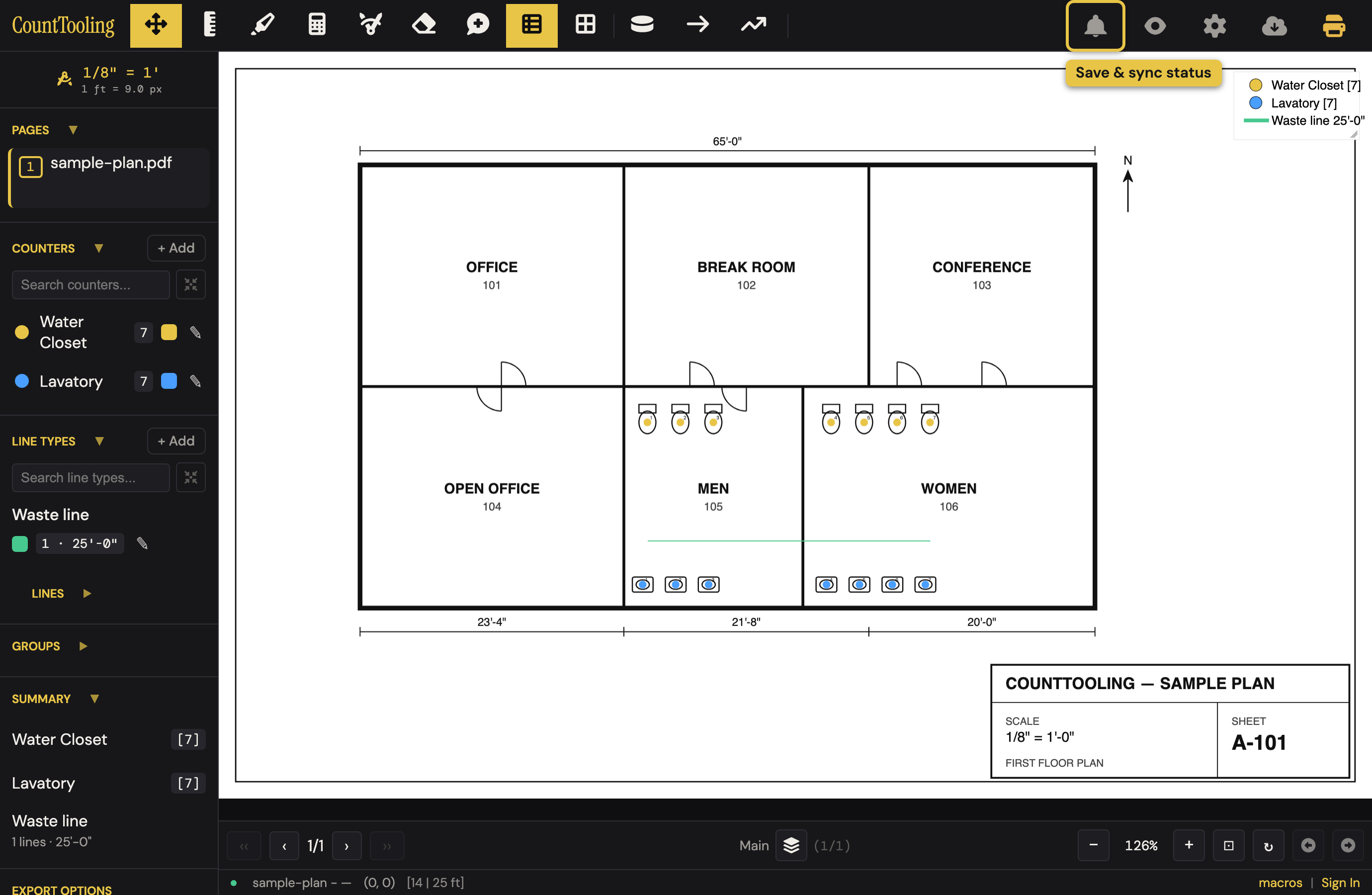
The bell in the header (and the indicators in the status bar) tell you the sync state at a glance:
- Gray: everything is normal: saved and synced.
- Yellow: something needs attention: cloud sync is failing, or your edit session expired (see below). Your work is still saved locally the whole time.
- Dim: you're offline; the app is saving locally and will sync on reconnect.
Click the bell for the Save Status panel: a rolling log of recent save activity, with Copy logs and Export logs buttons.
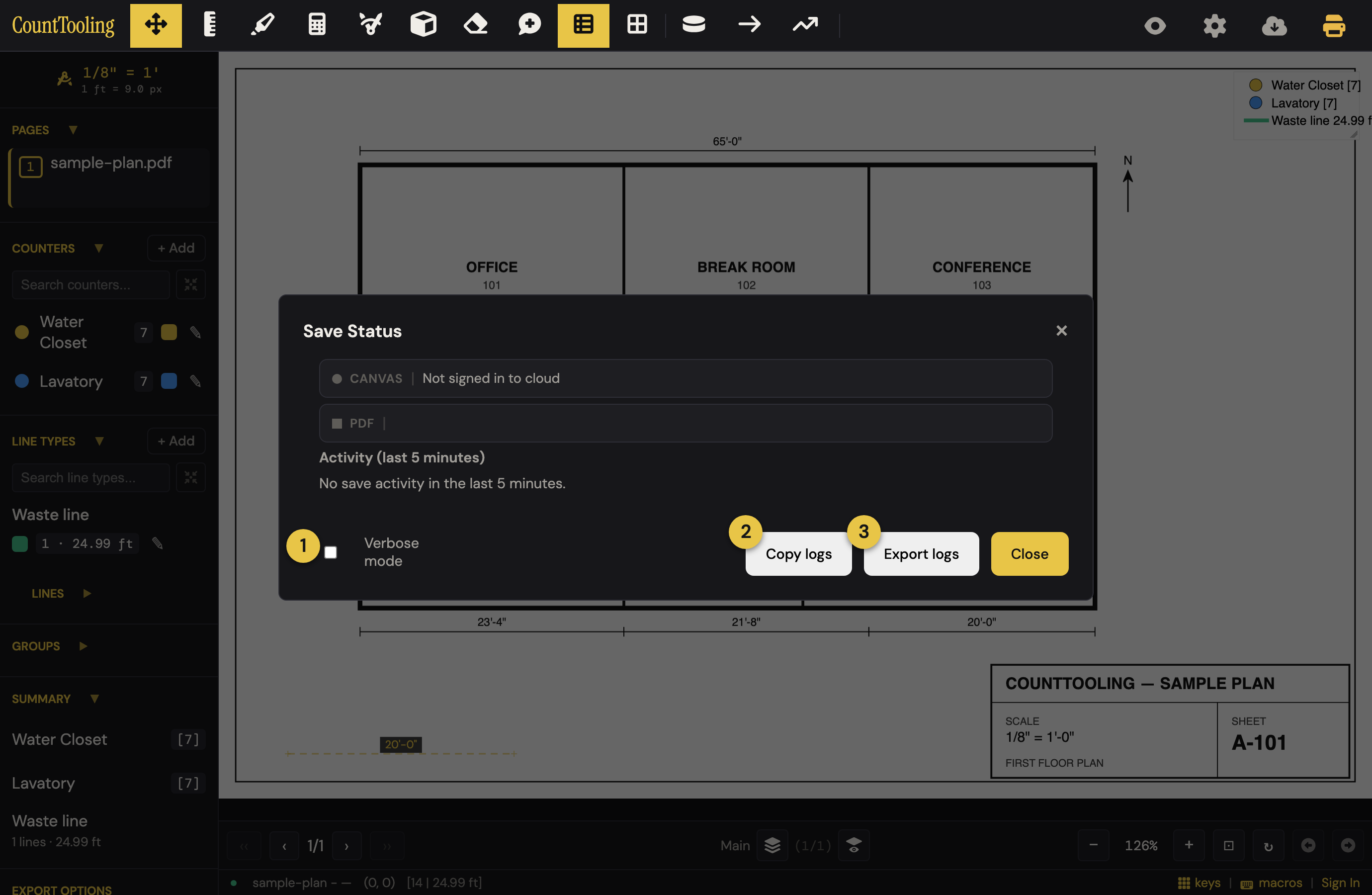 If you ever report a sync problem, that export is exactly what makes it diagnosable: it carries the technical detail from your machine's side.
If cloud sync pauses
On a flaky connection the app retries automatically with increasing patience, and a banner appears ("Cloud sync paused. Your work is saved locally"), with a Retry button. You don't need to do anything; keep working, and sync catches up when the network does.
If your edit session expires
Shared projects use check-out, one editor at a time, released after about 30 minutes of inactivity. When you turn a project in, the confirmation offers Close project, and a [Close] appears in the header beside the edit-status banner while you are viewing a project you edited this session; the same door sits at the foot of the header's cloud menu and in Project Settings, and it only asks first when there is unsaved work to lose. If you walk away long enough for your session to expire, the app first tries to quietly re-check-out for you; if it can't (say a teammate grabbed the project), a recovery dialog explains your options: re-check out and save, export your local work, or discard. Nothing is lost silently in any path.
The restore prompt
Open the app after closing mid-project and it offers to pick up where you left off: Keep restores your last session (from the cloud, or from the local backup when you're offline); Discard starts clean. No account? The prompt still appears, the backup lives on your device. And if the prompt doesn't show but you still have the plan file, just upload the same PDF again: the app recognizes it and puts your marks back.