Reviewing every bid: the Overseer role
Some people never do a takeoff, they just need to see them. An owner, a general manager, a senior reviewer: when the estimator says "it's in there, go look at it," they should be able to sign in and find the bid without asking anyone to share it first.
That's what the Overseer role is for. An overseer sees every bid in the company, always read-only: nothing they click, tap, or type can change an estimator's work, and that's enforced on the server, not just hidden in the interface.
The All Bids board
Sign in as an overseer and the All Bids board opens on its own, every bid in the company, newest first, one card per bid:
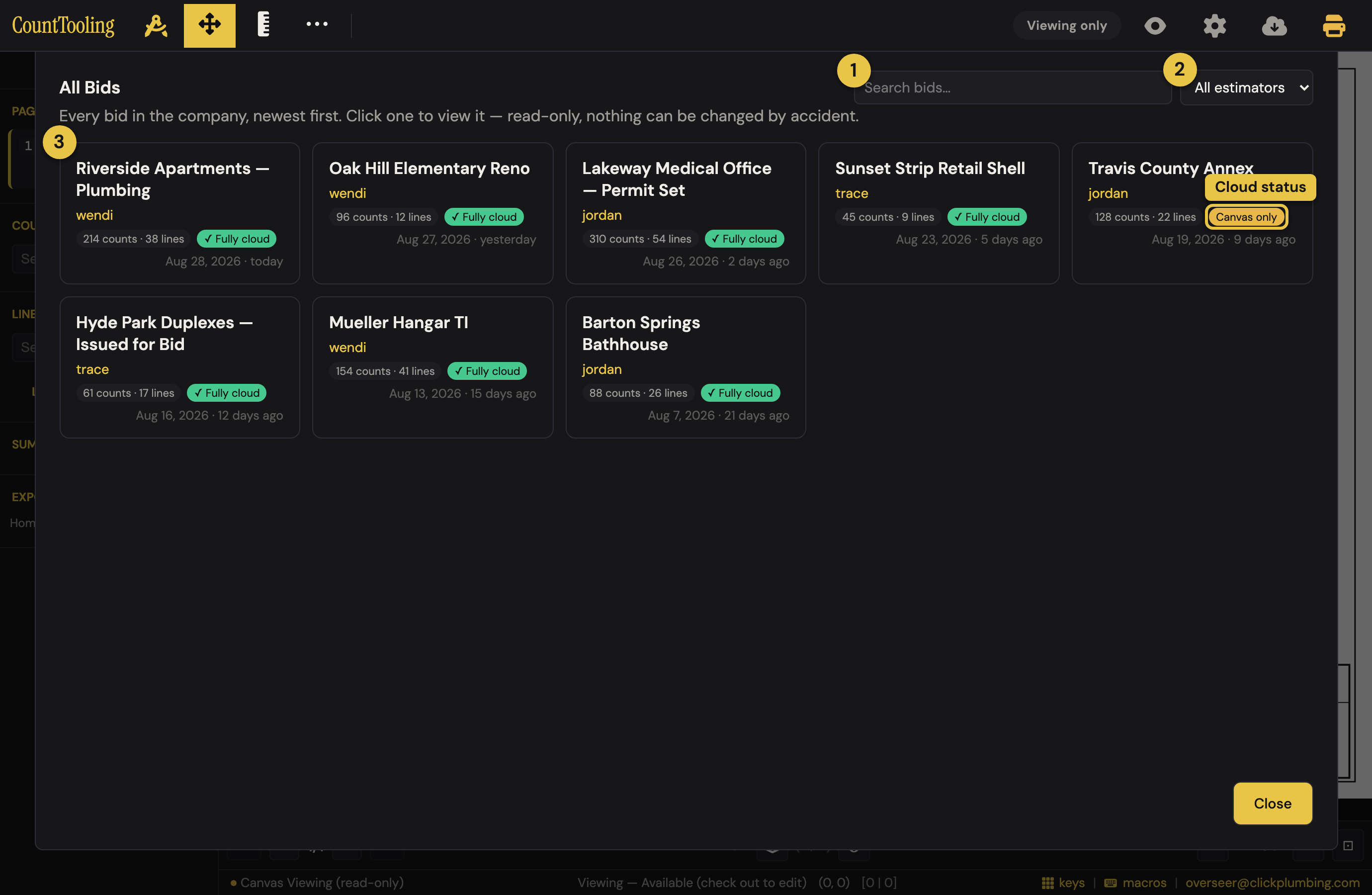
- Search: start typing any part of a bid's name to narrow the board.
- Filter by estimator: pick a name to see just that person's bids.
- Click any card to open the bid.
A company that runs digital twins also gets a People · Twins · All switch beside the search: the twins' backtests outnumber the estimators' bids many to one, so the board opens on People (an admin opens on All), and a line under the list says how many twin bids are off, with a link to show them.
Each card tells you the story at a glance:
- The bid's name, as the estimator saved it.
- Who made it: the estimator's name in yellow (hover for their full email).
- How much takeoff is on it: e.g.
214 counts · 38 lines. A card with no counts badge has no markups yet. - When it was last touched: the date plus a plain-English age: today, yesterday, 12 days ago.
- Cloud status: a card that says nothing about it is complete, the markups and the plan PDF both saved to the cloud, so the bid opens anywhere. A crossed-out cloud in the card's top corner means canvas only: the markups made it to the cloud but the PDF still lives on the estimator's device, so the drawing can't be displayed until they save it with the PDF included. Hover the cloud for the note.
If you close the board, it's one click away: All Bids in the sidebar.
Inside a bid
Click a card and the full takeoff opens exactly as the estimator left it, every count on the plan, every measured run, the legend, the scale:
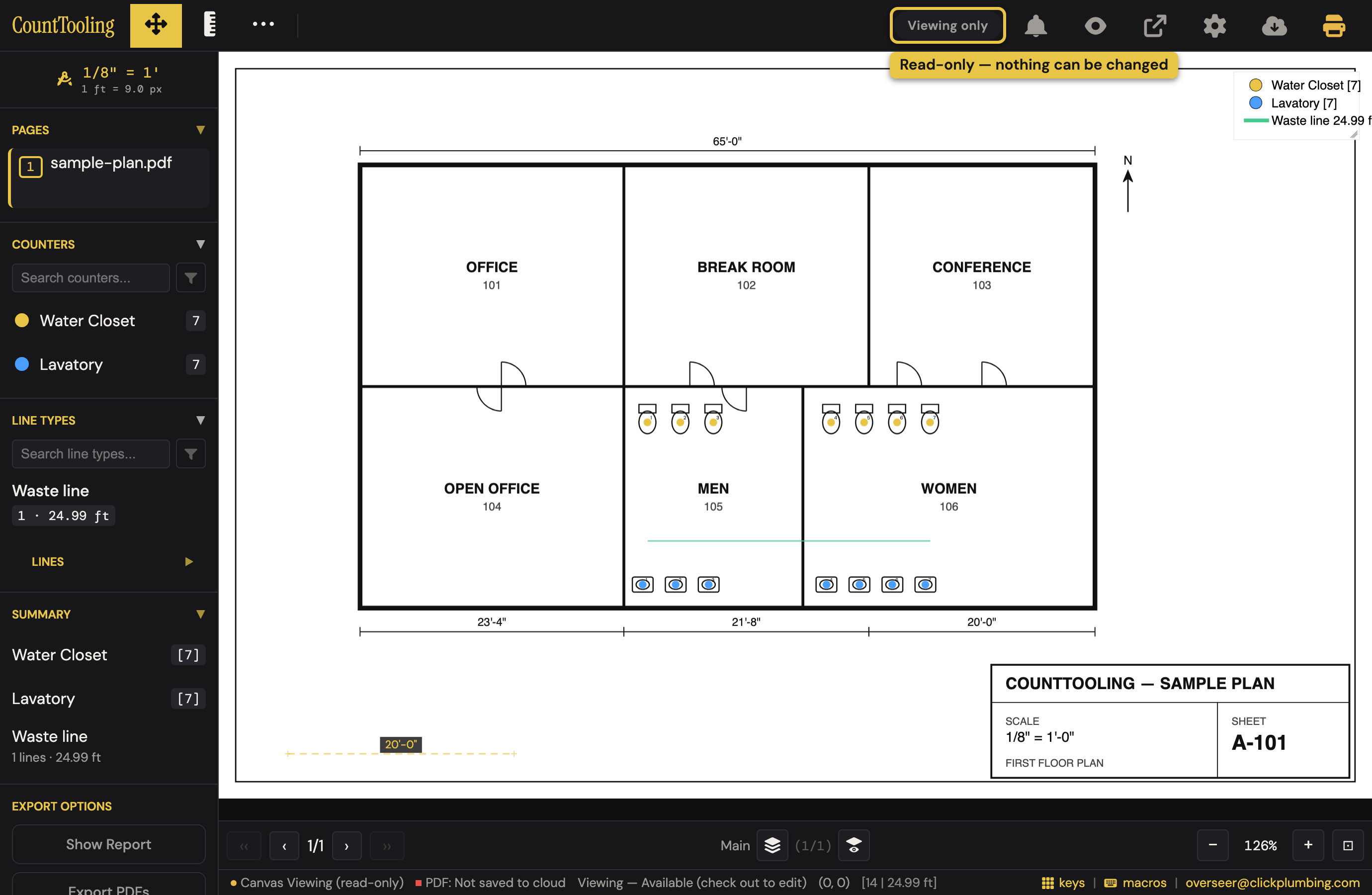
The Viewing only banner in the header is your reminder: this is a window, not a workbench. Everything below works while viewing, this is the overseer's full toolkit.
Moving around the plan
- Browse the sheets: click pages in the sidebar's Pages list; pages that have markups show a small count badge under their number. The pager at the bottom of the canvas steps through sheets too.
- Zoom and pan: scroll (or pinch) to zoom, drag with the Move tool to pan; the − / + controls and fit button live in the bottom-right corner.
- Multiple canvases: if the estimator split a sheet into canvases (the
(1/3)control at the bottom), click it to flip between them. You can view every canvas; you just can't add one.
Reading the takeoff
- Live tallies: the sidebar's Counters, Line Types, and Summary sections show what's counted and measured, with per-page and project totals. Click a summary row for the per-page detail behind the number.
- See the bare drawing: the Hide marks eye in the header peels the takeoff overlay off the plan so you can read the original sheet; click it again to bring the marks back.
- Measure for yourself: the Measure tool in the toolbar works in viewing mode: click two points to check a distance against the page's scale. Measurements are ephemeral, they mark nothing and save nothing, so measure freely.
Taking the numbers with you
- Show Report: in the sidebar's Export options, lays out the full takeoff summary as a report you can read or print.
- Export PDFs: downloads the marked-up plan as a PDF, exactly as you see it.
- Print: the printer button in the header prints the current view.
A sandbox, if you need one
If you ever want to poke at a bid, try a what-if without touching the estimator's work, open Load Project from Cloud and use a row's Copy to new: it opens a private, fully editable local copy under your own account. The original bid is never affected. (Load Project also shows every bid with its own search and filters, it's the same list as the board, in table form.)
What you can't do, on purpose
No dropping counts, no drawing lines, no deleting, no renaming, no saving over a bid, no checking out. Editing keyboard shortcuts are inert, and Save/Upload buttons simply aren't there. Even if the interface somehow asked, the server refuses an overseer every write, so nothing you do while reviewing can damage a bid.
When you're done, close the project or open All Bids again for the next one. Next time you sign in, CountTooling brings you back to the bid you last had open; the board is one click away.
The review handoff
"It's in there, go look at it" now has a button. When an estimator finishes a bid, they open Project Settings and use the Bid review row to Mark ready for review. From then on:
- On the overseer's board, that bid jumps into a pinned Ready for review lane at the top, wearing a gold badge, no searching, no asking who finished what.
- The lane runs oldest waiting first, so the bid that has waited longest is the first card.
- Open a ready bid and a Reviewing bar sits under the header: how long it has waited, who made it, its counts, then Request changes…, Mark reviewed and Next ready, which opens the next bid in the lane, so a morning of reviews is one loop. The card itself carries no decision: a bid is reviewed where it is read. Once marked, it drops out of the lane and keeps a quiet Reviewed ✓ badge, so both sides can see it's been seen.
- If the estimator changes the bid afterward, they can Mark ready again from the same Project Settings row (or Withdraw a request that went up too early).
Who can do what is enforced by the server, not the buttons: only the bid's owner, an editor on it, a lead or an admin can mark it ready or withdraw; only an overseer, a lead or an admin can mark it reviewed. The same badges show up in Load Project rows, so estimators see the state of their own bids wherever they look.
Granting the role (admins)
Overseer is a per-account flag that only an admin can set, from User Settings → Manage Users, each row has an eye toggle:
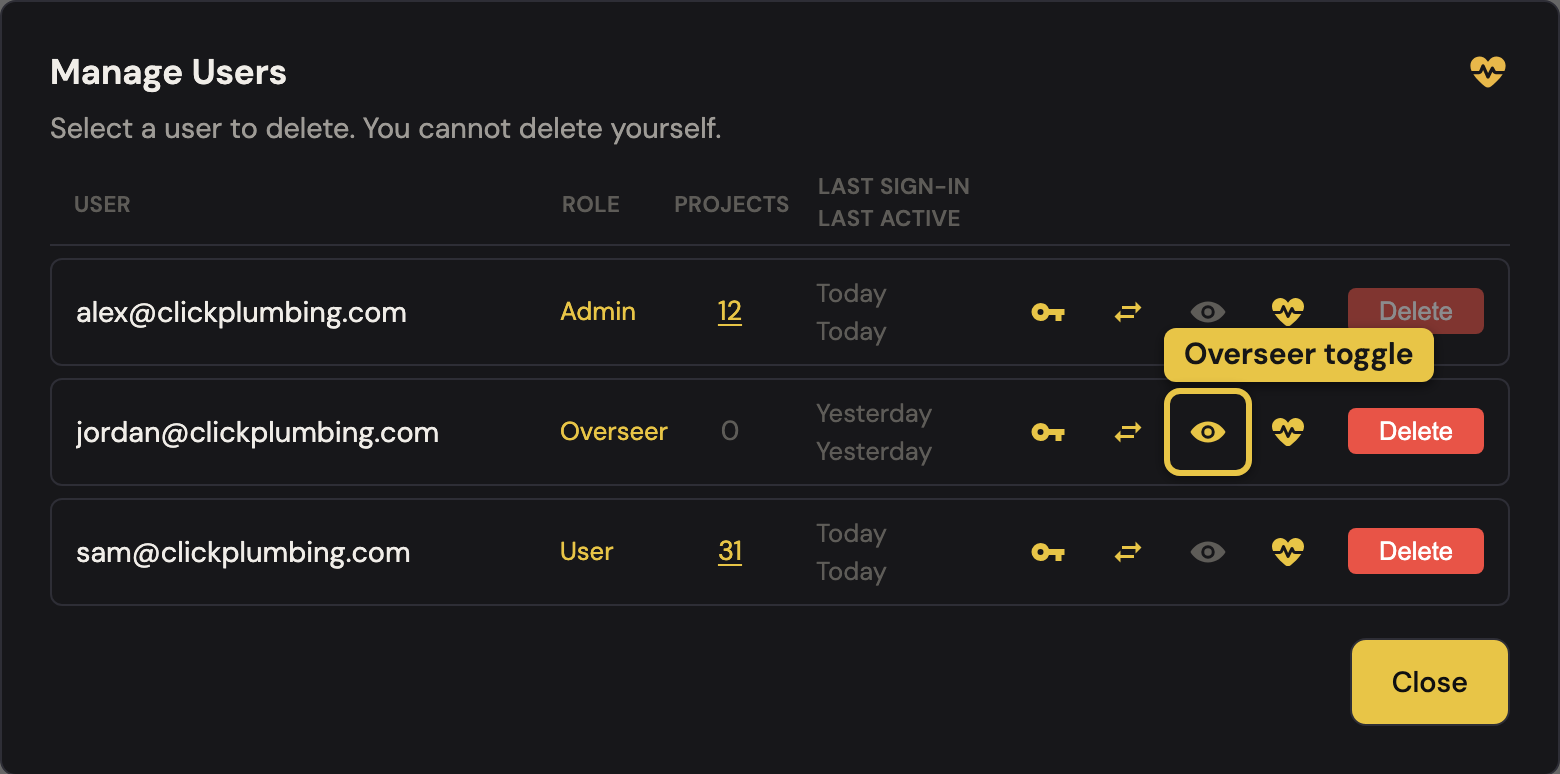
- Click the eye on a user's row to make them an overseer, the icon lights up and their Role column reads Overseer. Click it again to take the role away; the change applies the next time they load the app.
- Overseer is read-everything, write-nothing. It doesn't grant any admin powers, no user management, no deleting, no editing other people's projects. (Admins and leads already see every project and don't need the flag; they get the All Bids board too.)
- The role is a good fit for exactly the person who should look but never touch: reviews stay safe because the server refuses an overseer every write, even if a bug or a mis-click asked for one.
Related reading: Sharing takeoffs and view links for per-project viewers and editors (the scalpel where Overseer is the floodlight), and the Admin handbook for the rest of the Manage Users toolkit.