Installing the app and working offline
CountTooling runs in any modern browser with nothing to install, but you can install it, and once you do, it keeps working offline. That matters when the plans are in a basement, a mechanical room, or anywhere the signal drops.
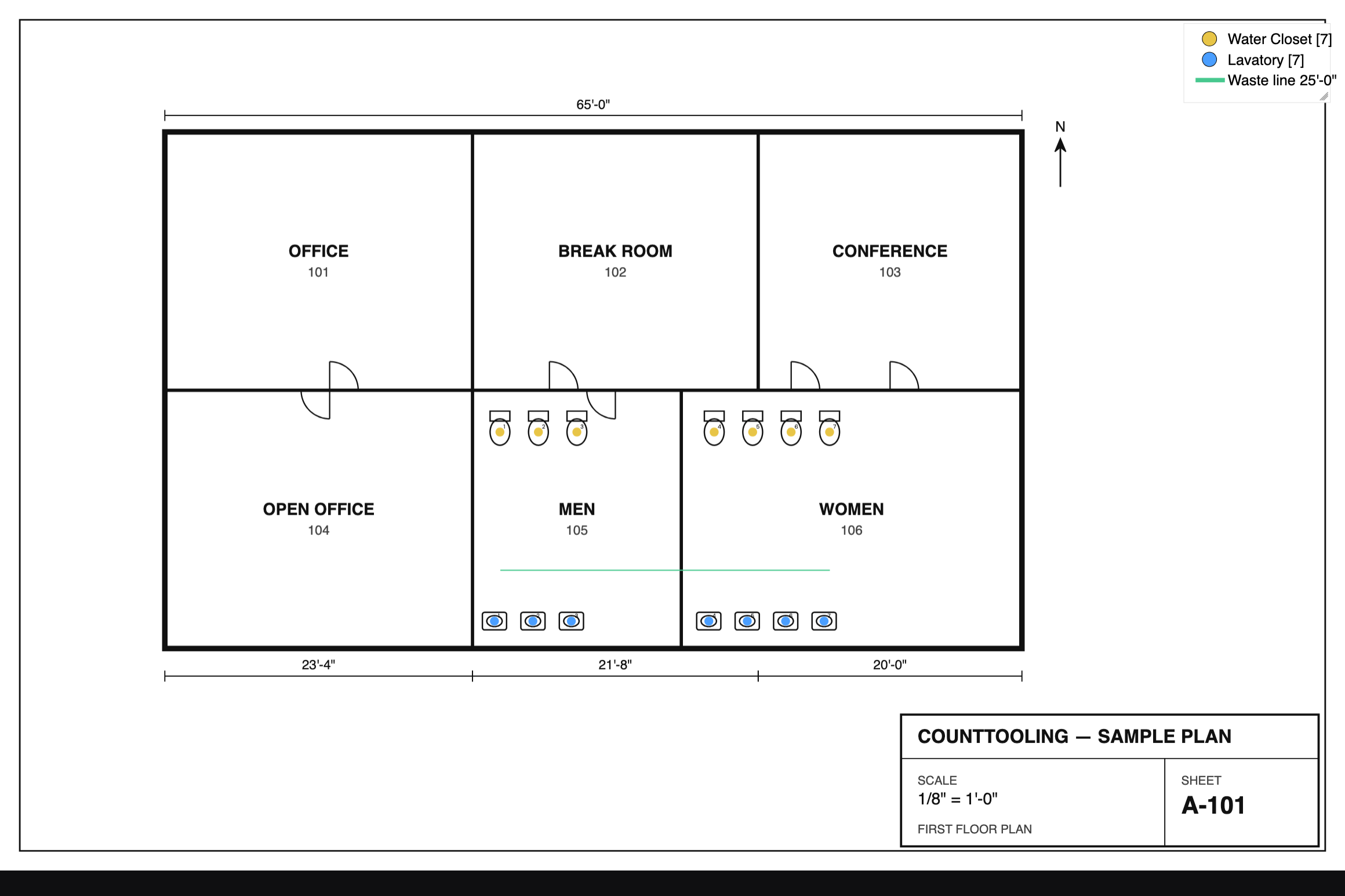
Install it (add to home screen)
Installing gives you a real app icon and a full-screen, chrome-free window; it launches like a native app, straight to your plans.
- iPhone / iPad (Safari): open CountTooling, tap Share, then Add to Home Screen.
- Android / desktop Chrome: use the browser's Install option, an install icon in the address bar, or Install CountTooling from the browser menu.
It's the same app either way: your projects, counters, and line types are all right where you left them.
Working offline
Once a takeoff is loaded, you can keep working without a connection:
- Counting, measuring, and marking up all work offline.
- Your changes auto-save locally every few seconds, with backups, so nothing is lost.
- When you're back online, cloud projects sync up automatically.
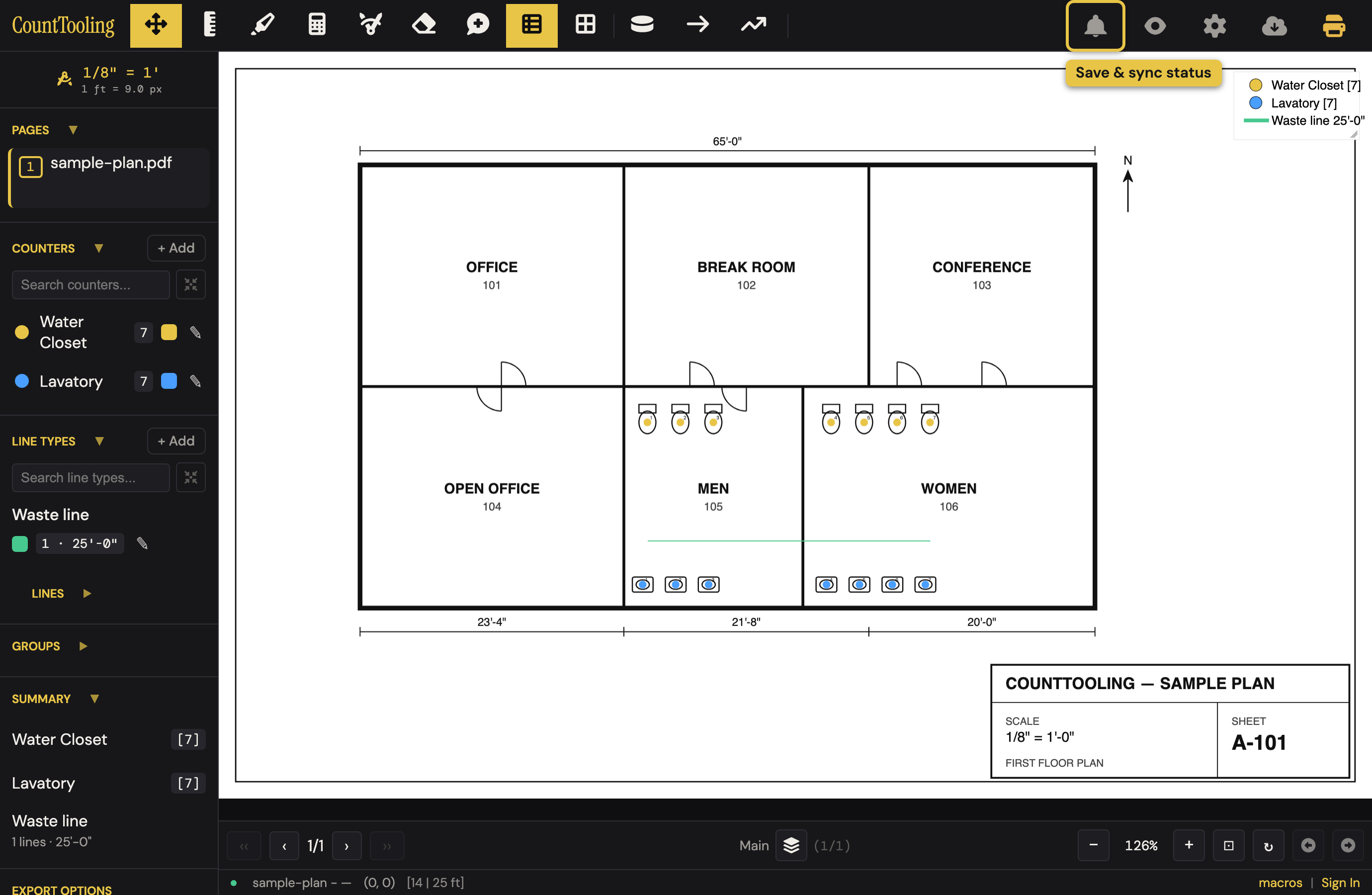
The Save status indicator in the top bar tells you where things stand: it shows when your work is saved locally and synced to the cloud, so you're never guessing.
One thing to know on iPhone: an installed app keeps its own storage, separate from Safari. So the first time you use the installed app, sign in and open your takeoff while you still have a connection; after that, it's available offline.
On a tablet
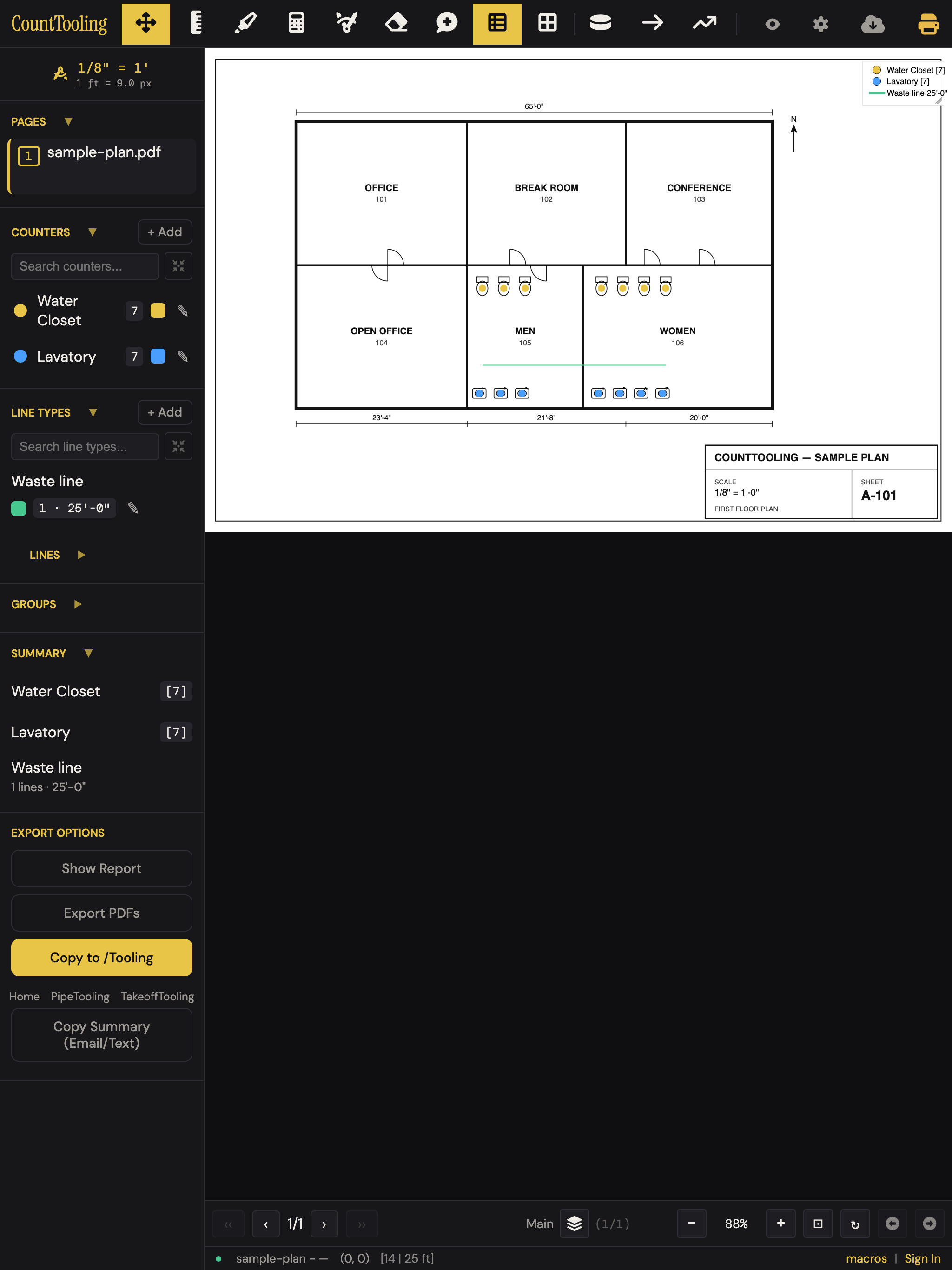
CountTooling is touch-friendly: single-finger pan, pinch to zoom, and long-press for the context menu. Marking up plans on a tablet in the field feels natural, and a takeoff you start on a tablet picks up on your desktop (and vice versa) when projects sync.
For getting work to and from teammates, see Sharing and view links.