Fixing mistakes and editing marks
Fast counting means fast mistakes, and that's fine, because everything in CountTooling is quick to take back or change.
Try it: the Fixing mistakes lesson opens sample sheets in the app and walks this with you, two or three minutes, checking each step against what you actually did.
Undo and redo
Ctrl+Z undoes, Ctrl+Shift+Z redoes, and the history keeps your last 50 steps: placements, deletions, moves, scale changes. The button in the bottom bar does the same with a click. Rapid clicking is safe; a misfire is a keystroke away from gone.
Edit one mark: right-click it
Right-click (or long-press on touch) any mark (counter, line, polyline, highlight, note, zone, room box) for its context menu. The menu names what you hit, so you know exactly what you're touching, and offers Delete plus type-specific actions:
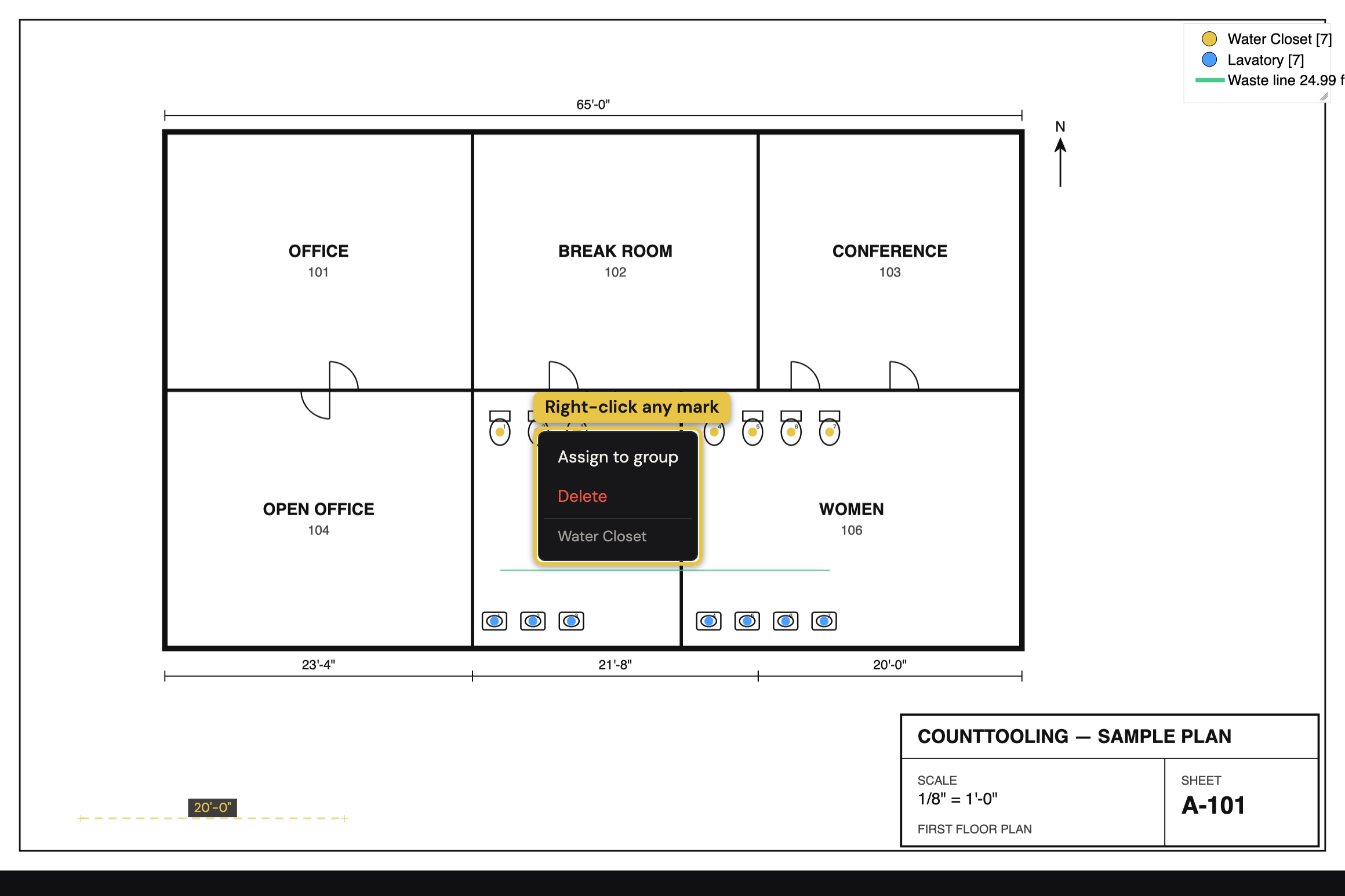
- Lines and polylines: open Line Properties to rename, recolor, add or adjust drops, or edit a polyline's vertices point by point.
- Notes: edit the text.
- Zones and room boxes: edit their values (multiplier, scale, height/room) or delete them. Room boxes have two delete paths, tuned to their size: the ✕ on a box's row in the sidebar Rooms list removes that one box instantly (
Ctrl+Zbrings it back), while deleting a whole room from its edit dialog asks first, because it takes every box the room owns with it.
In Move mode you can also click a line to select it (it draws thicker with a glow) and drag notes and the legend wherever they belong.
Clear a region: Delete Area
When a whole area needs to go (a redesigned restroom, a miscounted wing), don't click marks one by one. Pick the Delete Area tool and drag a rectangle around the region. A confirmation dialog tells you exactly how many counters, lines, highlights, notes, and zones are inside before anything is deleted.
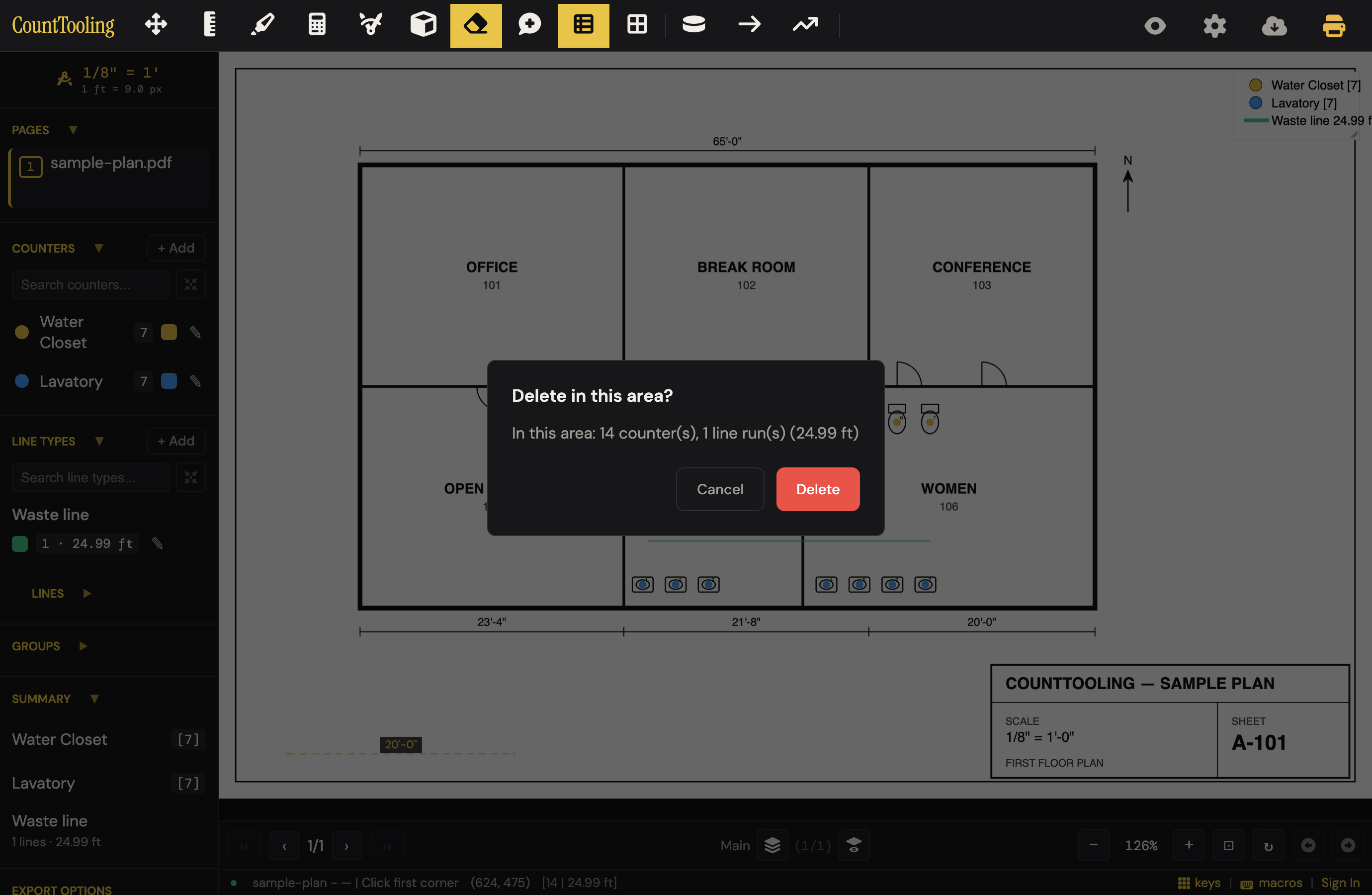 Confirm once and the region is clear;
 Ctrl+Z brings it all back if you overshot.
Fix a whole type at once
Named the counter wrong? Wrong color for a line type? Open the item's details from the sidebar (the edit pen on its row): rename, recolor, or change the icon, and every placed mark of that type updates everywhere at once. The details dialog also lists which pages the type appears on; click a page to jump there, and offers Delete with a confirmation that tells you how many placed marks it would remove.
Tool settings, one right-click away
Right-click any tool button (Counter , Line , Polyline , Multiply Zone , Legend , Grid ) for a small menu with that tool's settings and quick-add actions. Tools without settings say so, so the gesture always answers.
Related: Keeping a dense takeoff organized covers groups and filters that make mistakes rarer in the first place.