Reports, exports, and sending a takeoff onward
A takeoff is only useful once it's numbers someone can price or check. CountTooling gives you several ways to get there, from a quick on-screen tally to a full marked-up PDF.
Try it: the Deliverables lesson opens sample sheets in the app and walks this with you, two or three minutes, checking each step against what you actually did.
See the totals as you work
- Legend : the on-canvas summary shows your counts and lengths by type, right on the plan. It's draggable and resizable, so park it wherever it doesn't cover your work (styling options: Highlights, notes, and the legend).
- Footer totals: the status bar keeps a running
[count | length]across every page and canvas, with multiply and scale zones already applied. - Count detail: click any count or line total in the Summary for a per-page breakdown with thumbnails showing exactly where each item sits. The takeoff audits itself. The Summary counts every layer, like the sidebar badges and the footer total; on a sheet with more than one layer the breakdown shows each layer's share (Main 9 · Alternate 3).
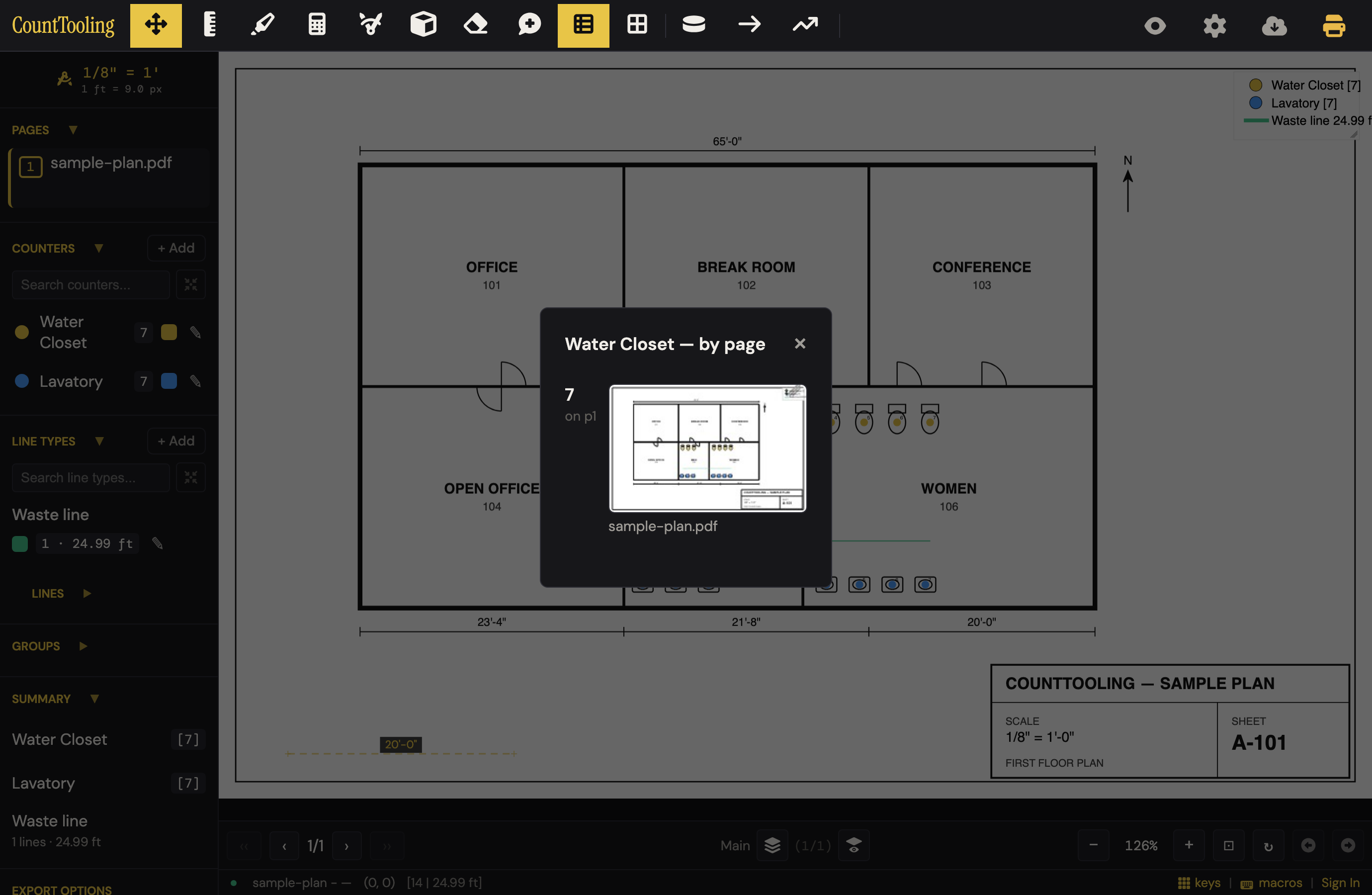
Show Report
Open Show Report for the full breakdown in a new tab. You can scope it to:
- This sheet,
- This sheet, every layer (when the page has more than one canvas layer),
- Every sheet, or
- Everything: every sheet, every layer (when any page has more than one).
Export a marked-up PDF
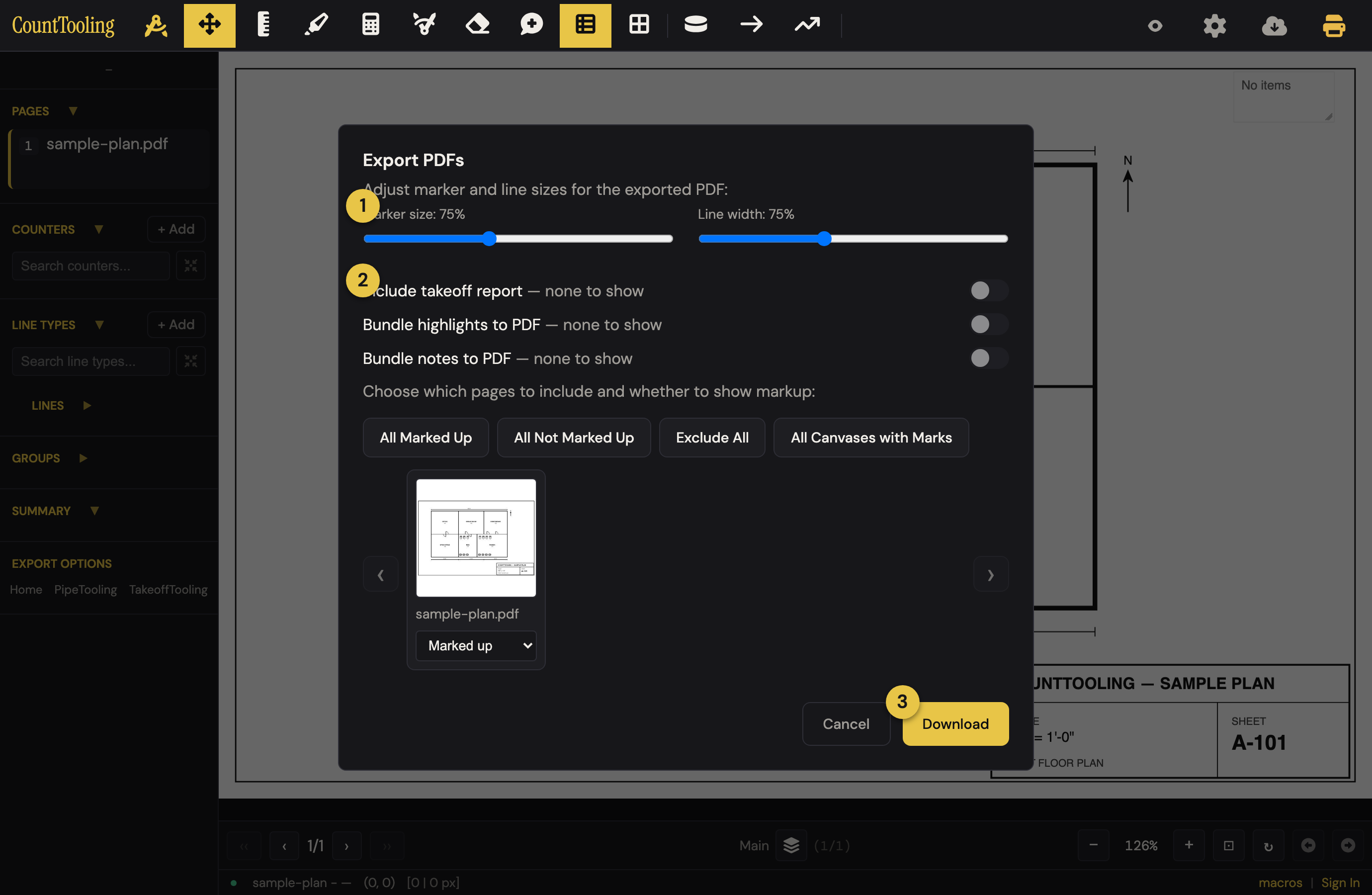
The sidebar's Export PDFs button opens the dialog above and produces a deliverable with your markup baked in. You control:
- marker and line size (so marks read at print scale),
- whether to include the takeoff report, and
- whether to bundle highlights and notes into the file.
You can export specific pages, just the marked ones, or the whole set.
Two different files: the sidebar Export PDFs button makes the marked-up deliverable, while Original PDF (no marks) in the header cloud menu downloads the clean plan exactly as it was uploaded. When you're sending the takeoff onward, you want Export PDFs.
Send it to where it gets priced
- Copy to /Tooling: copies the takeoff as tab-delimited counts, ready to paste straight into a bid. When you're signed in and the project is saved to the cloud, it also appends a view link back to the source takeoff, so a bid can point at the plan it came from. Otherwise the counts still copy and a note explains what's missing (sign in, or save the project) to get the link (a view-only session can never create one). Before copying, the app double-checks your scales: if any exported page has lines but no scale, a dialog lists those pages and offers to jump you straight to Set Scale, or you can export anyway, knowing those lengths are in pixels. Pages without marks are never flagged.
- Open in TakeoffTooling: for electrical work, hands the takeoff to TakeoffTooling (assemblies, labor units, supplier pricing) in one click. Every row arrives with its unit (counts, feet, or unscaled pixels), its group, its pages, and its child counts nested underneath, plus the project name and the plans link when you're signed in, so nothing is retyped or guessed there. The same scale check runs first.
- Copy Summary (email/text): a plain-text summary for dropping into an email or message. It runs the same scale check before copying.
Both copies offer two scopes. Everything is every mark on every layer of every sheet, whatever is showing on screen, so a bid never leaves marks behind on a layer you had turned off. This sheet is the sheet you are on, pre-checked to what's on your screen at that moment: the active layer (always included) plus whatever the show-all peek has turned on; when the sheet carries more than one layer a layer picker under the scope buttons lets you tick or untick layers before you copy. The pasted text starts with a header that names exactly what it holds, Counts, Maple St TI · every sheet · every layer or Counts, Maple St TI · this sheet · layers: Main, Gas, so the number a bid was built on is written down with it and never quietly depends on a view toggle.
A group marked Alternate (see Organizing a busy sheet) is set apart in both copies: Copy Summary opens with Base: … Alternate … adds … and heads the block Alternate: --- Alternate: <name> --- heading, with the Copied confirmation naming what the alternate holds; Open in TakeoffTooling marks each of its rows. A bid on the other end can price the job with and without it.
On an HVAC takeoff both copies end with a --- Duct --- block (the Duct Schedule's per-size LF · lb rows, the straight and fittings totals and the Bid weight, tab-separated like the rest) so a sheet-metal bid never leaves without its pounds. Sheets with no duct add nothing.
Pages without a scale
Totals never mix pixel lengths into feet. A line drawn on a page with no scale is measured in raw pixels, and every total (the footer, the sidebar, the legend, the report, and both copy buttons) keeps it in its own px bucket (12.50 ft + 200 px, never one summed number). In the exports, unscaled runs appear as separate px of rows/bullets so nothing pixel-measured can masquerade as feet in a bid. Set the page's scale to move those runs into the feet total.
- Download current page: the yellow printer button downloads the sheet you're on as a PDF; on multi-page or multi-layer projects it offers a scope menu (this sheet, every sheet, everything).
- Export / Import Canvas: your marks alone (palette, groups, and all) as a small JSON file, without the PDF: the easy way to hand a takeoff to someone who already has the plan set. See Canvas layers.
Reading the bare drawing
Need to hand someone the plan without the takeoff on top? The Hide marks toggle peels the overlay off so the drawing reads clean, then brings it back with another tap; it's purely visual and never touches your data.
To share the live takeoff instead of a file, see Sharing and view links.