Keeping a dense takeoff organized
A serious sheet ends up with hundreds of marks. These are the tools that keep it readable: for you while counting, and for whoever checks the work later.
Try it: the Organizing lesson opens sample sheets in the app and walks this with you, two or three minutes, checking each step against what you actually did.
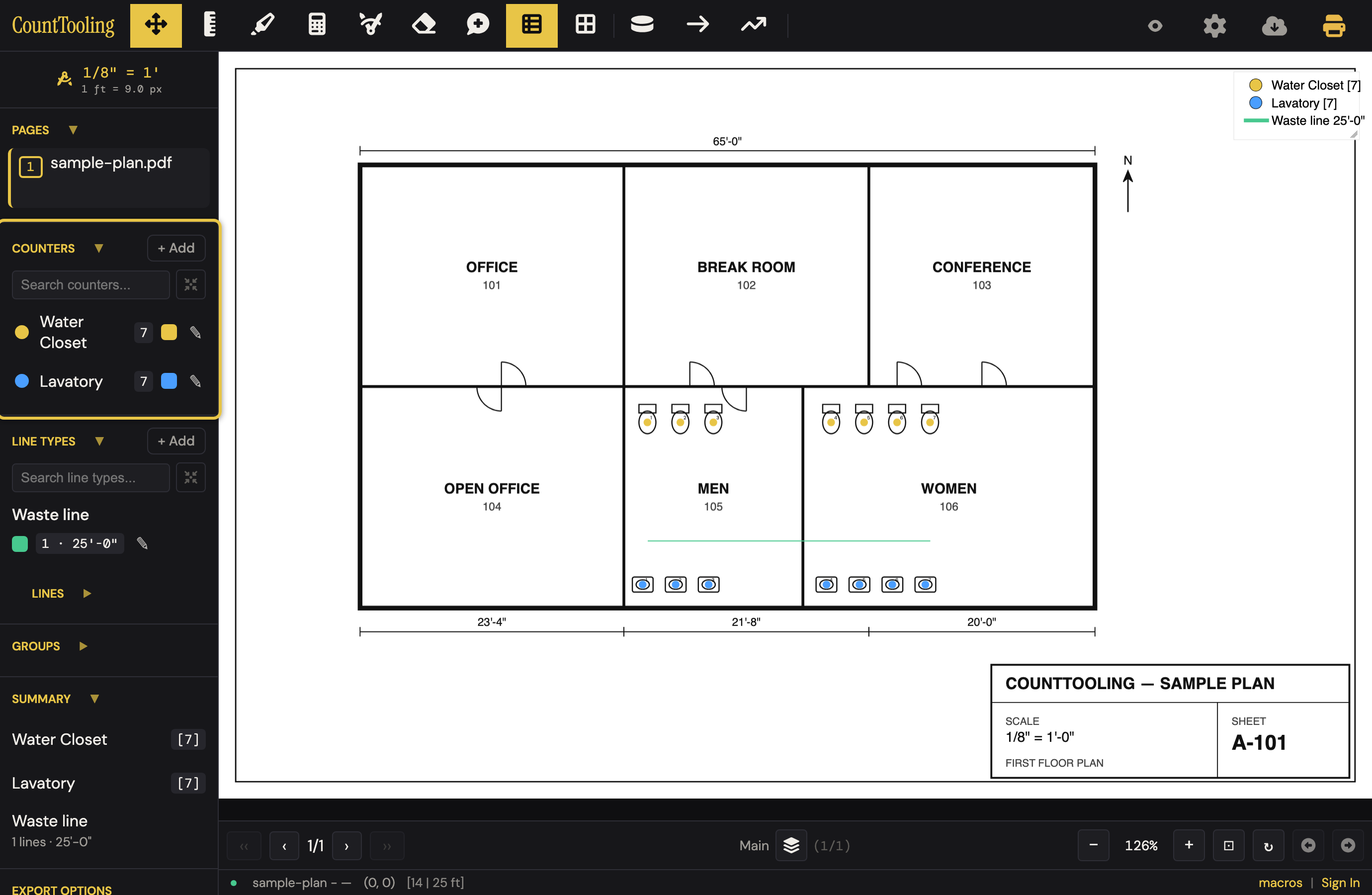
Groups: subtotals that mean something
Assign related marks to a group (all the fixtures in one restroom, everything on one riser) and the Groups section shows a subtotal per group. Assign from a mark's right-click menu ("Assign to Group") or when editing it; create and recolor groups from the sidebar's + Add in the Groups section.
Don't see a Groups section? It's per-project and stays out of the way until used: turn on Use groups in this project in Project Settings and the section (and the Assign-to-Group menus) appear. Any project that already has groups shows it automatically.
Alternates. When the customer's plan set carries a section they want priced with and without, count it as a group and turn on Alternate in the group's dialog (under Color). The group then wears an ALT mark in the sidebar, the Summary lists it after everything else with a Base line and a + group line at the foot, and every export sets it apart the same way: Show Report and Copy Summary open with Base: … Alternate … adds …, Copy to /Tooling puts its rows last under a --- Alternate: <name> --- heading, and Open in TakeoffTooling marks each of its rows. The marks on the sheet draw as before. On a plumbing plan, the alternate's own water sizing follows the whole-plan block in Copy to /Tooling and the email summary, under --- Alternate: <name> · Water sizing --- — its runs serving its fixtures, so the estimator sees what the section adds to the pipe.
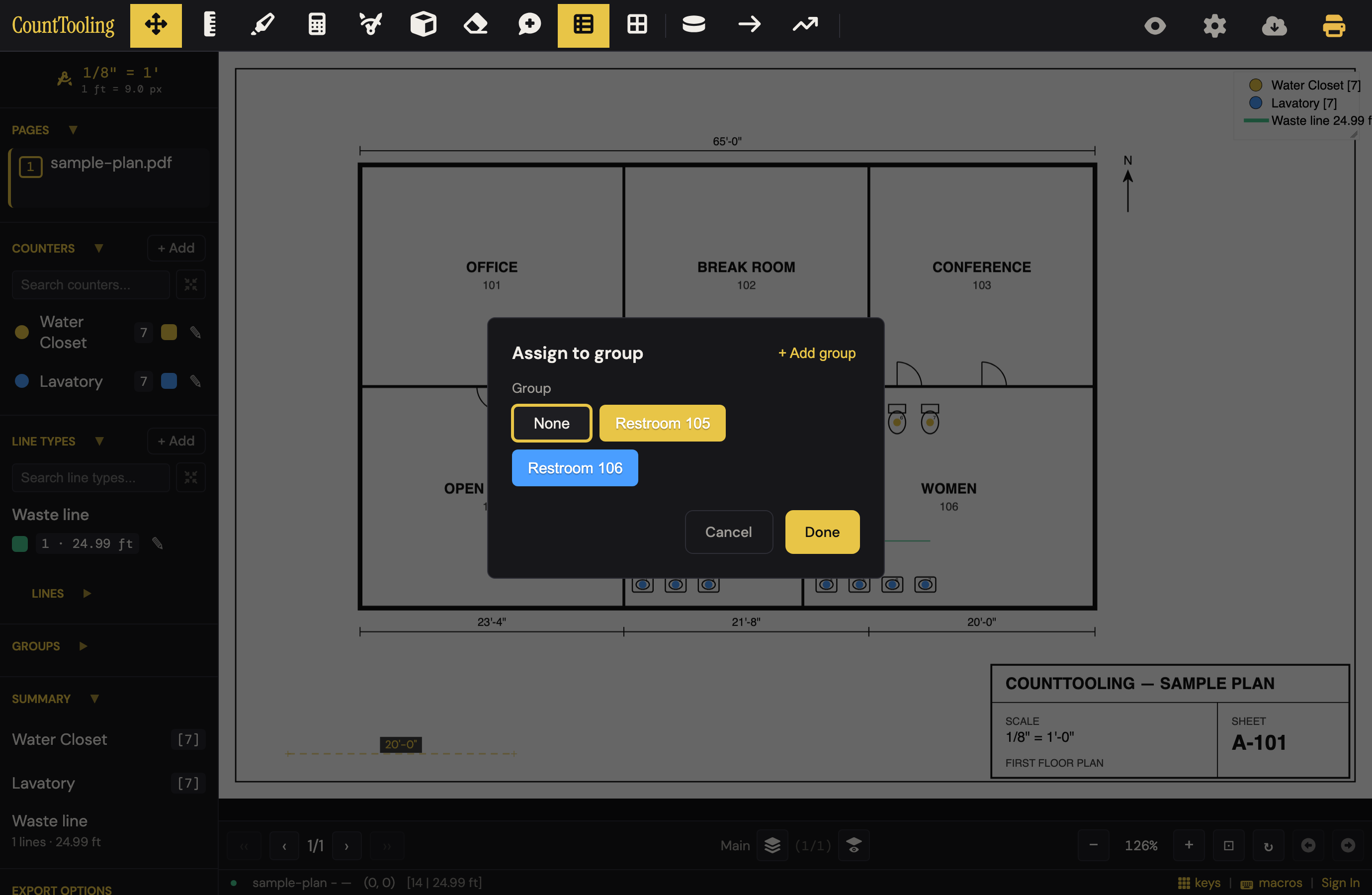
Turn on Show group colors and marks render in their group's color instead of their type's, the fastest way to see the grouping on the plan. Toggle it back off to return to type colors.
Show only what you're working on
- Show only what's used: both Counter Settings and Line Type Settings have a three-way filter (Off / This page / This project) that hides unplaced items from the sidebar lists: scope it to the sheet you're counting, or to anything used somewhere in the bid. The inline button next to each sidebar search box cycles the same three states, and a "hidden by filter" note with a show all link appears below the list so nothing ever looks lost.
- Search: the Counters, Line Types, and Lines sections each have a search box; on a project with forty counter types, typing beats scrolling.
- Collapse sections: click a section's heading (or its arrow) to fold it away, and again to open it; Groups and Lines start minimized to keep the sidebar tight. A section's settings sit behind the small gear beside its heading.
Make the marks themselves legible
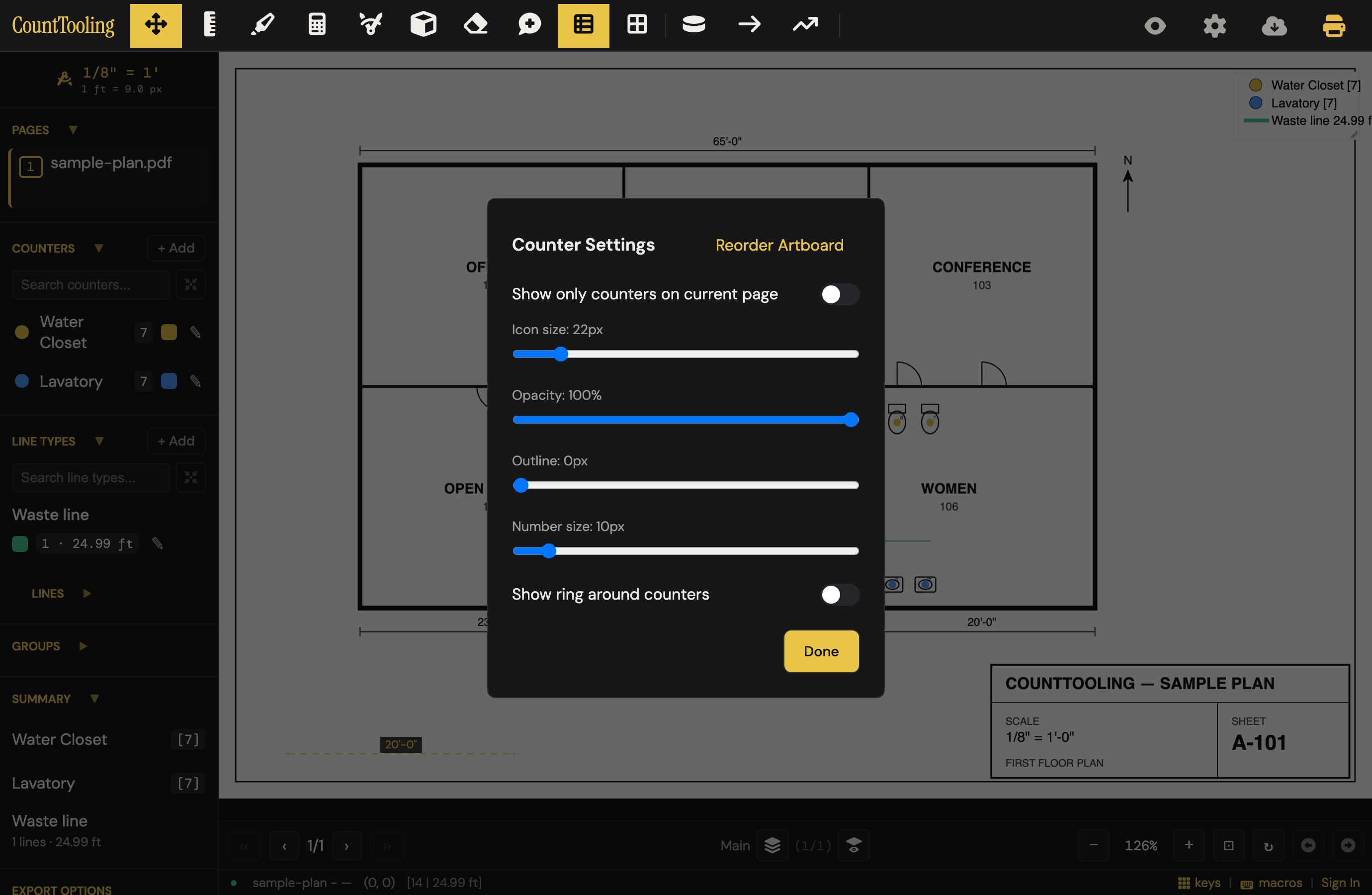
- Counter Settings (click the gear beside the Counters heading, or right-click the Counter button): icon size, opacity, the count number's size, outline, and the ring, with its own size, opacity, and solid/hollow toggle. Tune once so marks read at your zoom level and at print scale.
- Line Type Settings (click the gear beside the Line Types heading, or right-click a line tool): line size, opacity, drop-marker size and icon style, length-label size, and whether labels orient along the line.
- Reorder the sidebar: drag counter and line-type rows into the order you actually use; the reorder follows you into pickers and reports.
The legend keeps score on-sheet
The legend overlay shows counts and lengths by type right on the plan: drag it wherever it doesn't cover work, drag its bottom-right corner to make it smaller or larger, and style it in Legend Settings. It prints and exports with the sheet, so the deliverable carries its own summary.
Related: Custom icons for making each type instantly recognizable, and Fixing mistakes for editing what's already placed.