Building your palette in two clicks
Typing 2" PVC Waste forty times per bid is data entry, not estimating. The Quick creators build palette items from modifier chips instead: two or three clicks, and the name, color, and icon come out right and consistent every time.
Try it: the Counting lesson opens sample sheets in the app and walks this with you, two or three minutes, checking each step against what you actually did.
Quick Count: counters from modifiers
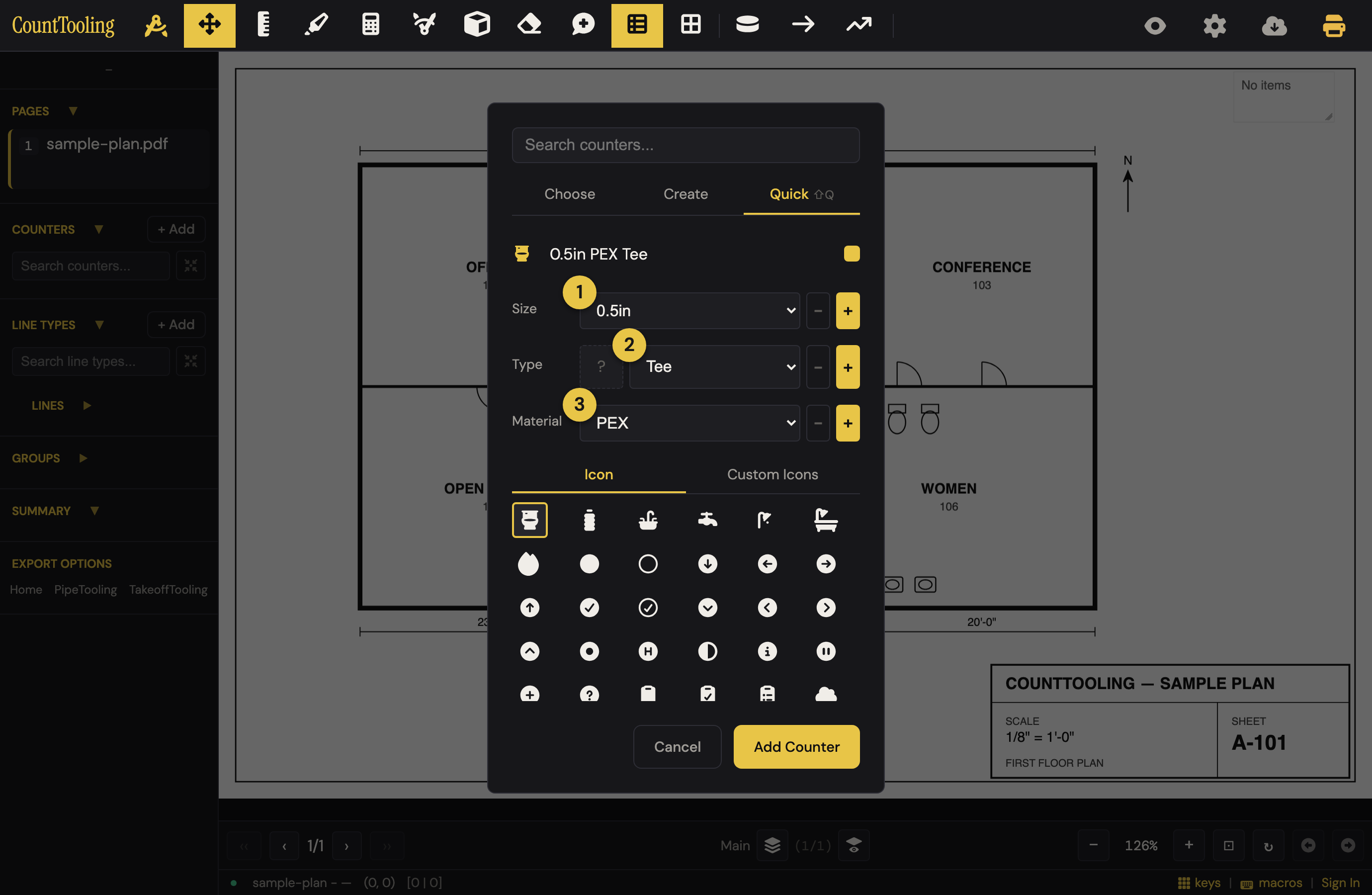
Open the Counter modal and switch to the Quick tab; that's the Quick Count creator (Shift+Q jumps to it while the modal is open):
- Pick a Size (2", 3", 4"…), a Type (the fixture or fitting), and a Material.
- Watch the name preview assemble itself.
- Add: the counter is created, selected, and ready to place.
Once you've bound an icon to a Type (select the icon, then click the type-icon box next to the Type picker), that Type picks its icon automatically, so a floor drain gets a floor-drain symbol without a trip to the icon grid.
And if the counter you're adding would come out looking identical to one you already have (same icon, same color), the color rotates automatically to a free palette entry; the preview shows the exact color you'll get, so two different fittings never wear the same mark on the sheet.
The Trade switch
The Trade control at the top of the Quick tab (Plumbing, Electrical, HVAC) decides which vocabulary the pickers speak. Plumbing is Size / Type / Material as above. Electrical turns them into Category / Variant / Rating: pick Receptacle · Duplex and the name reads "Duplex Receptacle", the drafting symbol is already selected, and a Mount height row appears prefilled with the trade's working figure (18" for a receptacle, 44" for a GFCI at a counter, 48" for a switch); overwrite it if your job differs. The mount height rides the counter, and the Chain tool uses it to write the vertical on every run. The trade is per project (Project Settings has the same switch) and remembered as your default for the next bid; each trade keeps its own editable option lists.
Stating a trade also arranges the toolbar: a plumbing or electrical project keeps Polyline inline and tucks Duct behind the ⋯ menu; HVAC does the reverse. A project that has never named a trade keeps the toolbar it always had. To override the profile for one tool, open ⋯ and use the pin on its row, Pin Duct to the toolbar / Unpin, and the choice sticks with the project (and seeds your next one). The toolbar never re-orders on its own.
Quick Line: line types from modifiers
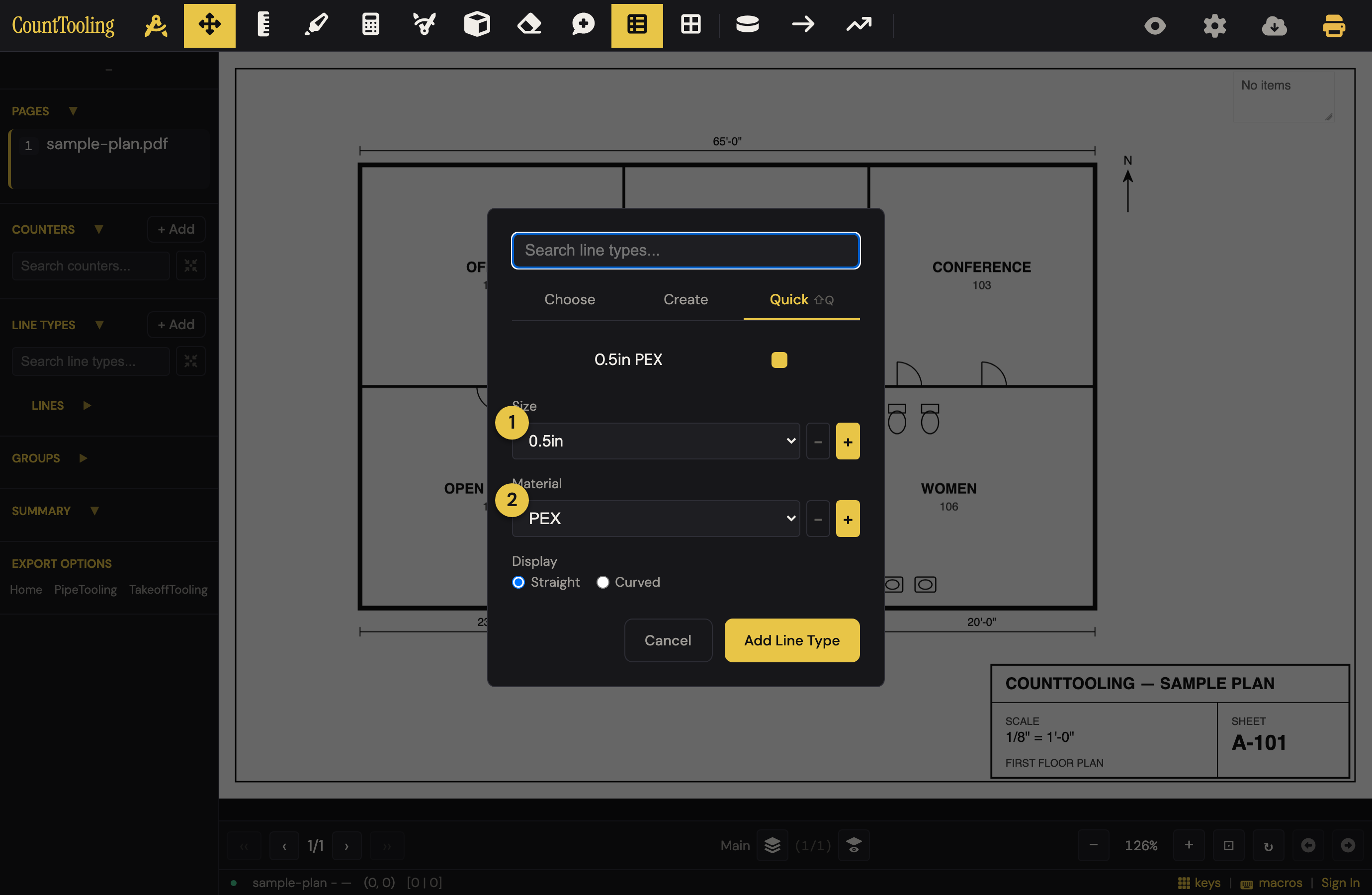
The Line modal has the same idea on its Quick tab: pick a ① Size and ② Material, and Add creates the line type named and colored, active, and ready to trace.
Make the modifiers yours
The Size / Type / Material option lists (Category / Variant / Rating for Electrical) are editable: add the sizes and materials your work actually uses, remove the ones it doesn't, right from the pickers. Know what the − button does before you tap it: it removes the selected option from your saved list immediately, no confirmation, and the change carries into future bids (the last remaining option can't be removed). Trimmed one you still need? Add it back with +. Your modifier preferences are part of your profile: save your Artboard and they follow your account to any device.
Why this beats typing
- Consistency:
2" PVC Wasteis always spelled exactly that way, so tallies, reports, and Copy to /Tooling group cleanly instead of splitting across three spellings of the same thing. - Speed: a new bid's palette takes a minute, not fifteen.
- The number row: pair this with Quick Keys and your freshly built palette is one keystroke away per item.
Related: Counting fixtures with counters · Measuring runs