Scale zones and multiply zones
Real plan sets aren't always one clean scale per sheet. Two tools handle the awkward cases without making you re-do the whole page.
Try it: the Repeats lesson opens sample sheets in the app and walks this with you, two or three minutes, checking each step against what you actually did.
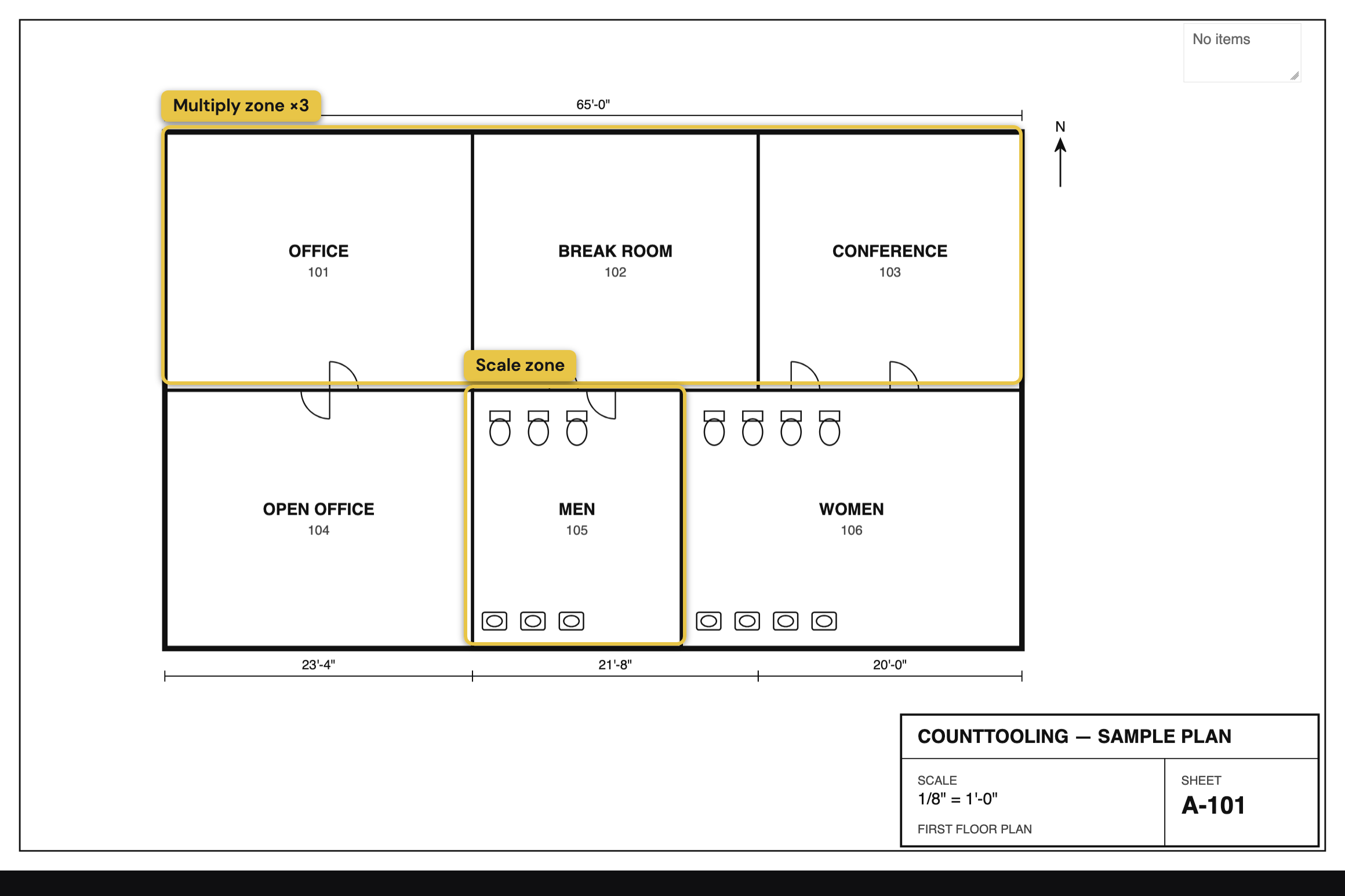
Scale zones: for multi-scale sheets
A sheet often has the main plan at one scale and a blown-up detail or isometric at another. A scale zone lets a region carry its own scale:
- Pick the Scale Zone tool and draw a rectangle around the detail.
- Give that zone its own scale (the same way you'd set the page scale).
Any line fully inside the zone is measured with the zone's scale; everything else uses the page scale. The Measure tool respects it too, so a quick check inside the detail comes out right.
Multiply zones: for repeated areas
When the same layout repeats (typical floors, identical units, a row of matching rooms) you don't want to count it ten times by hand. A multiply zone does it for you:
- Draw a multiply-zone rectangle around the area.
- Set how many times it repeats.
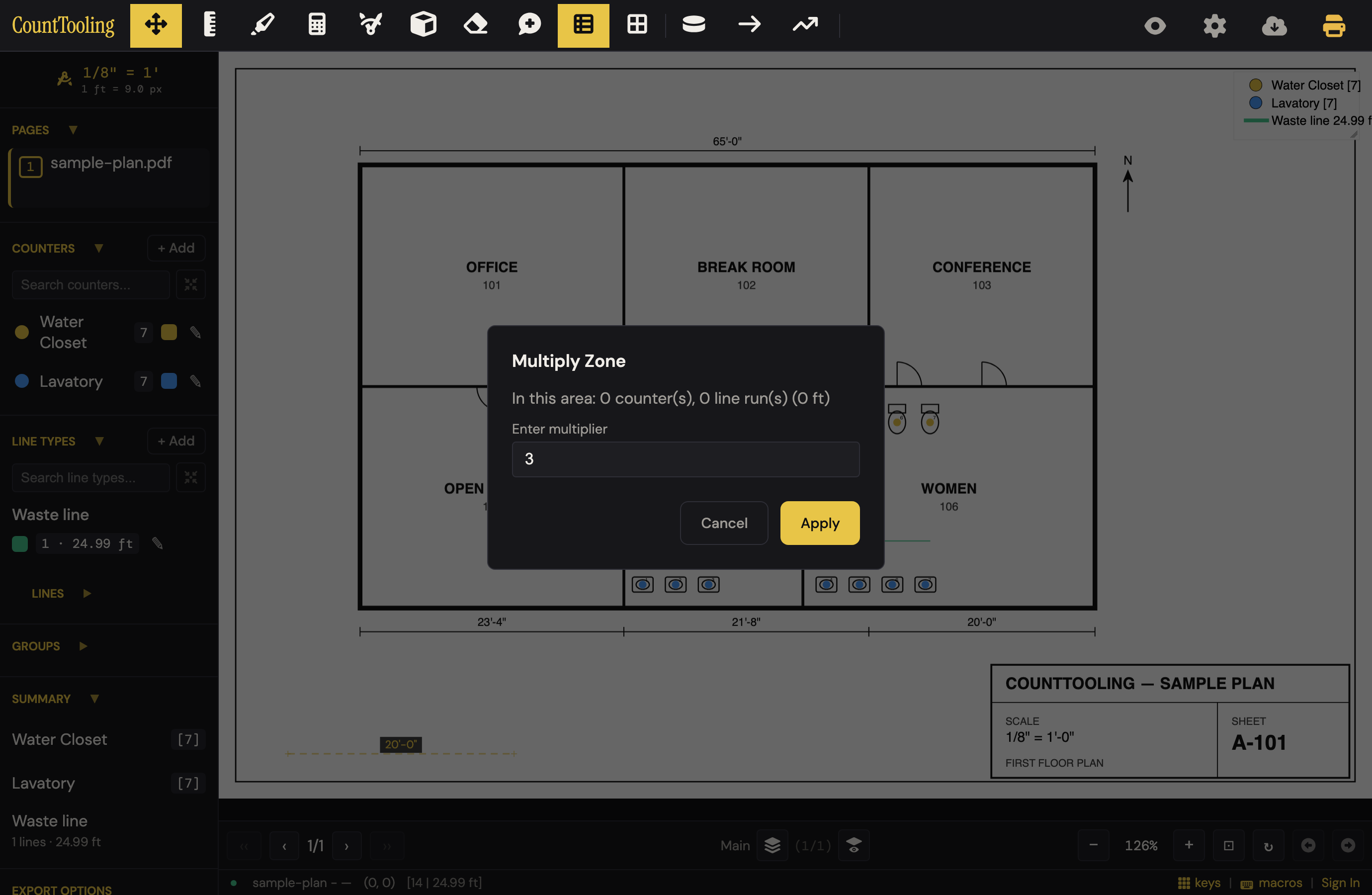
Every counter and line whose anchor falls inside is multiplied by that factor in the totals, duct runs too, pounds and fittings included, and the dialog says how many duct runs it found. Count one typical floor, wrap it in a ×10 zone, and the project totals reflect all ten. Every total in the sidebar shows the with-repeats number; hover a counter's badge (or a duct run's) to see how many are physically placed.
Here's both zones live on a sheet; note the legend: the four lavatories inside the ×3 zone count as twelve, so the Lavatory total reads 15, not 7:
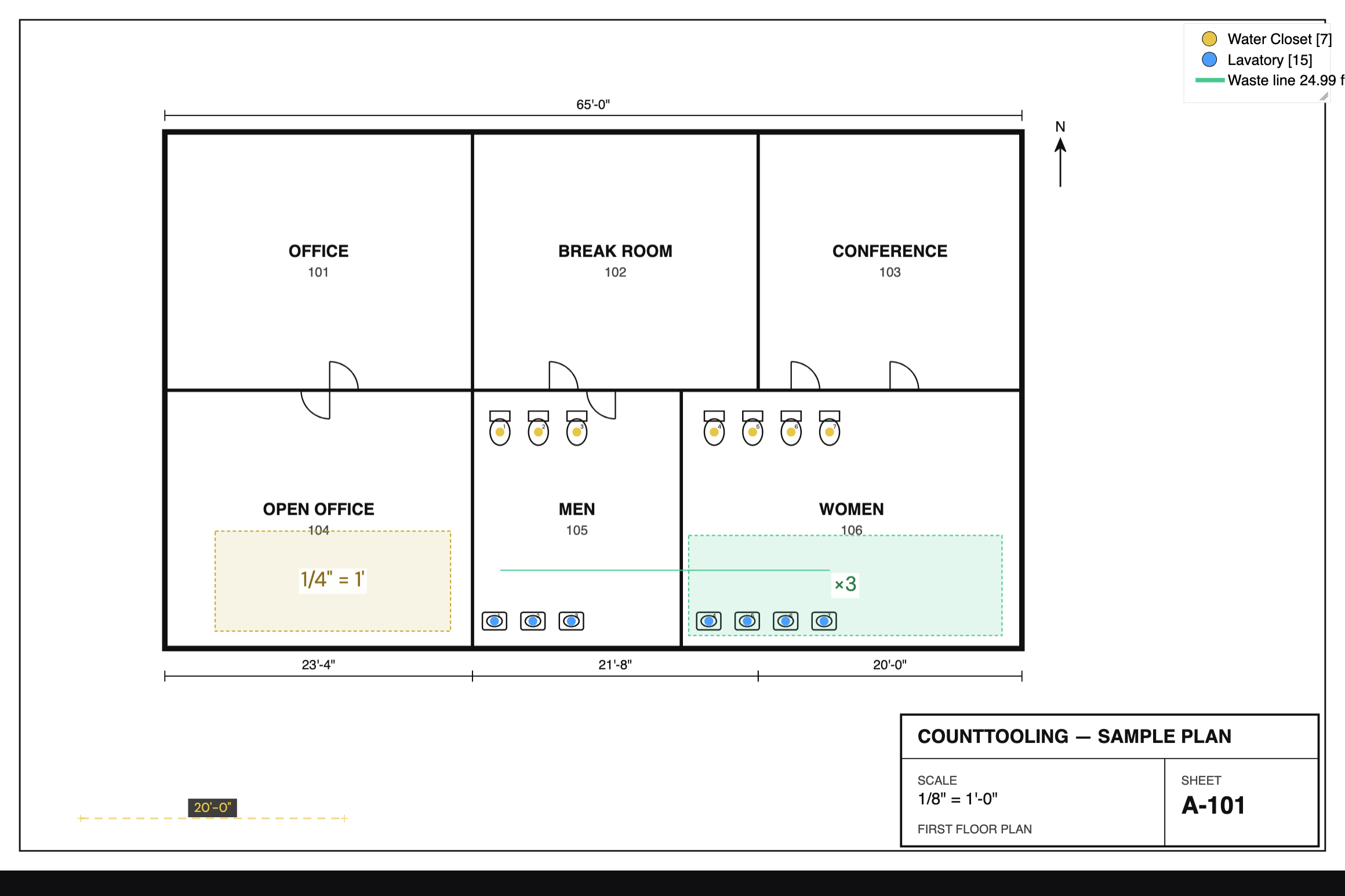
Good to know
- Scale zones can't overlap; each region gets one scale.
- If the page's scale was corrected for a compressed or rescaled sheet, zone presets are corrected the same way automatically, the zone's label shows the same "· ANSI D"-style suffix, and the dialog says so. Calibrating a zone by clicking two points is never corrected (it's already ground truth).
- A multiply zone changes the totals, not the marks on the sheet, so the plan stays readable.
- Both are visual boundaries you can edit or delete later from their right-click menu, and in Move, you can drag one: grab the body to move it, a corner to resize it (the cursor changes to say which), and the label and every total re-tally as you go. One drag is one undo step.
- After Apply, the zone tool stays armed: draw the next typical floor or detail right away, and press Esc (or pick Move) when you're done.
These two tools are what make CountTooling practical on messy, real-world plan sets; see them in context in How to do a takeoff from a PDF.