How to do a takeoff from a PDF
A takeoff is just a structured count and measurement of what's on a drawing. With CountTooling you do it straight on the PDF: no printing, no exporting to another tool first. Here's the whole workflow.
Learn by doing: Learn in the app lists a five-minute tour for each trade and thirteen short lessons, one per part of the app, on sample sheets it opens for you.
Prefer to learn by doing? Open the app with nothing loaded and pick a five-minute tour under the canvas, plumbing, electrical or hvac (Project Settings has the same three links under Help). Each walks you through a small takeoff of its trade on the sample plan. Want a denser sheet to practise on? The empty canvas also offers the advanced sample plan, a restaurant plumbing sheet with a kitchen, a dish room, a bar and a grease interceptor, opened the same way, step by step, checking each step against what you actually did. A tour circles where to click and shades where to drag, and Show me where points at anything you cannot find.
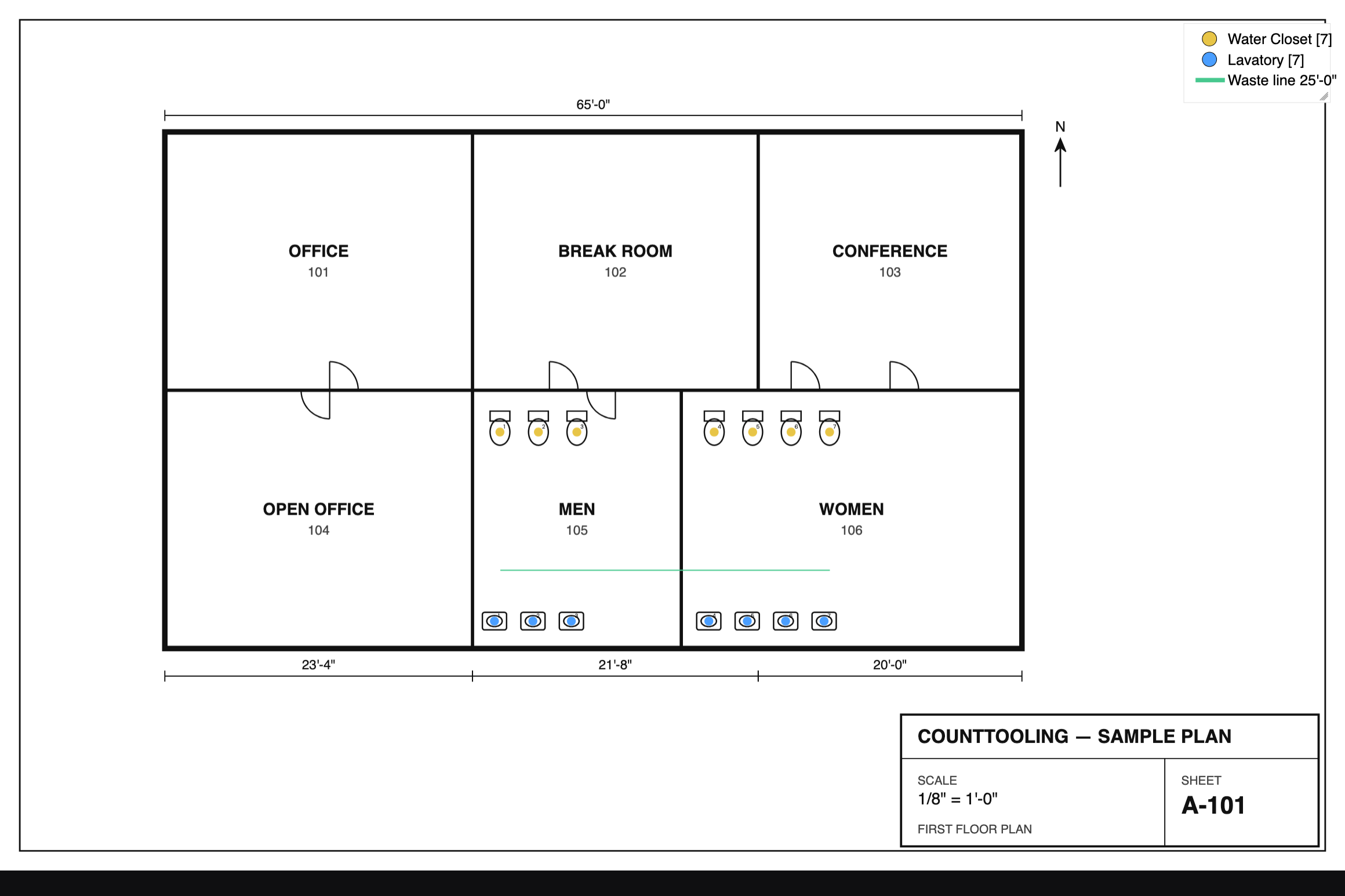
1. Upload your plan PDF
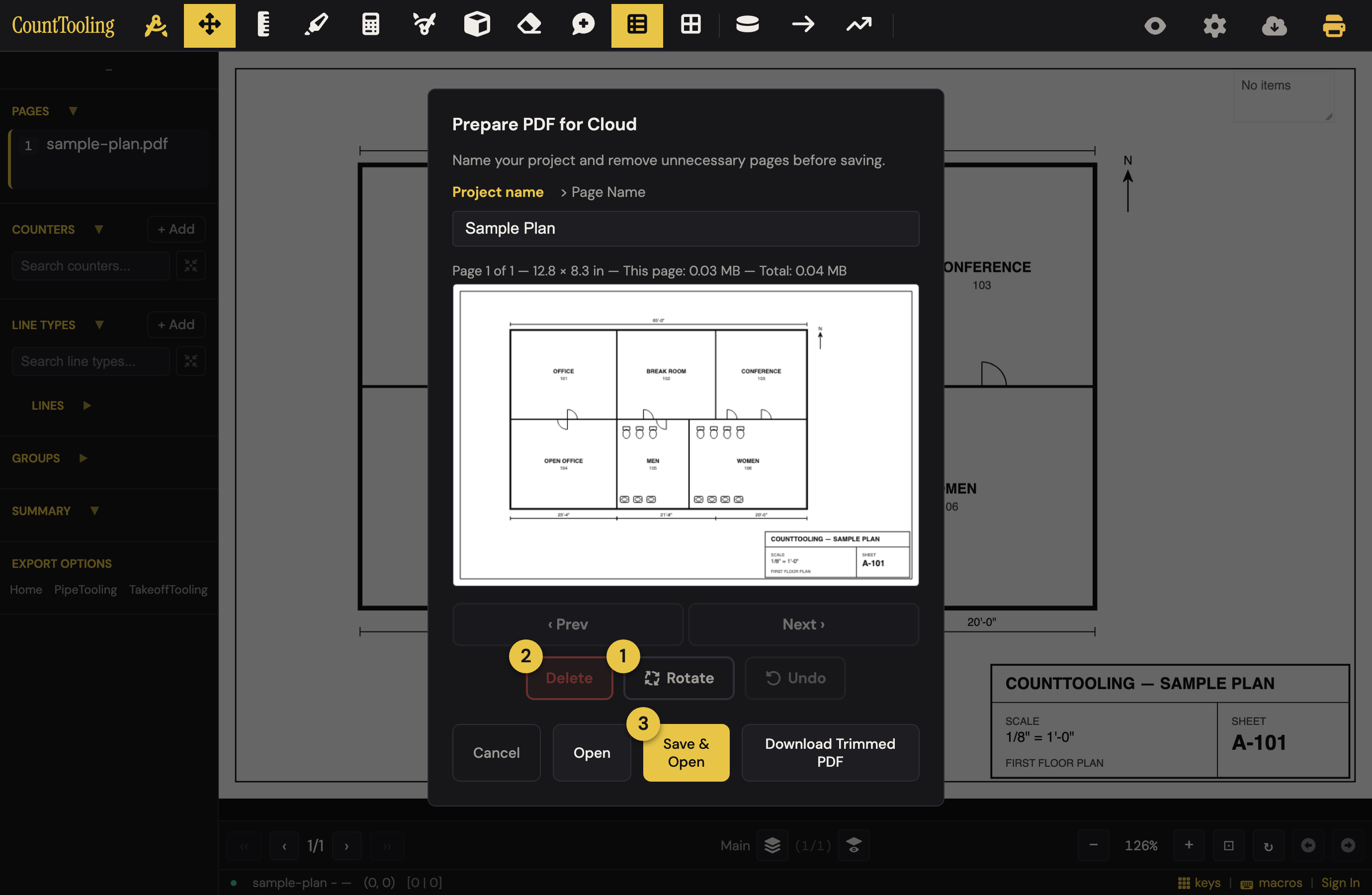
Open the app and drop in your plan set. The Trim your set dialog lets you shape the set before you start: ① rotate a sideways sheet, ② delete the pages you don't need, then ③ save and open. Each remaining page becomes a sheet you can mark up.
More on trimming, renaming, and adding addendum pages later: Preparing a plan set.
2. Set the scale
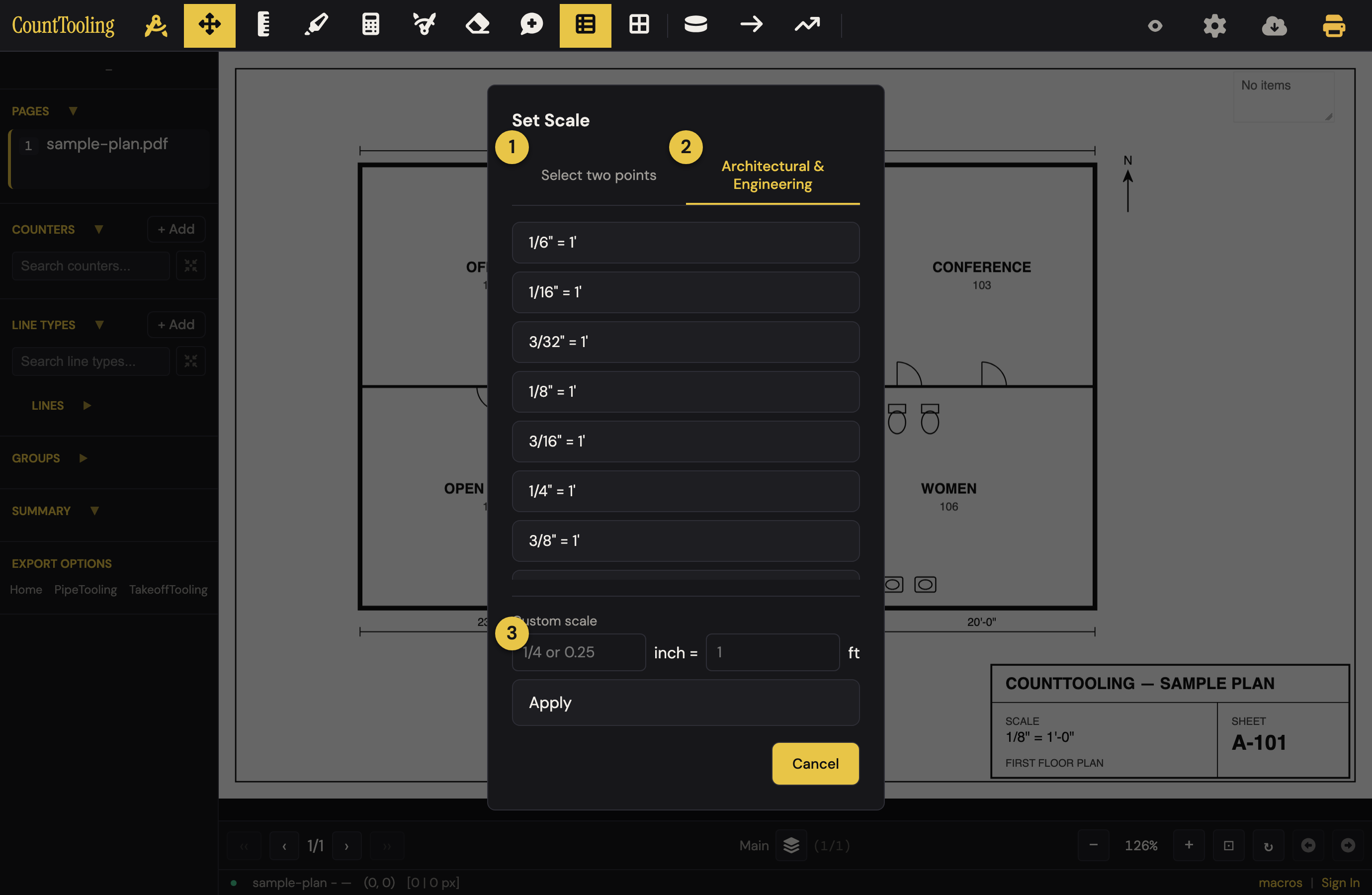
Before any measurement means anything, calibrate the drawing. Pick the Set Scale tool and choose your method: ① click two points a known distance apart and enter the real length, ② pick an architectural or engineering preset, or ③ type a custom ratio.
- Working with a sheet that has details at a different scale? Add a scale zone around that region and give it its own scale.
- Repeating areas (typical floors, identical units)? Drop a multiply zone so everything inside it is counted the right number of times.
- Using a preset? Verify it against a known dimension before you trust a bid to it.
3. Count your fixtures
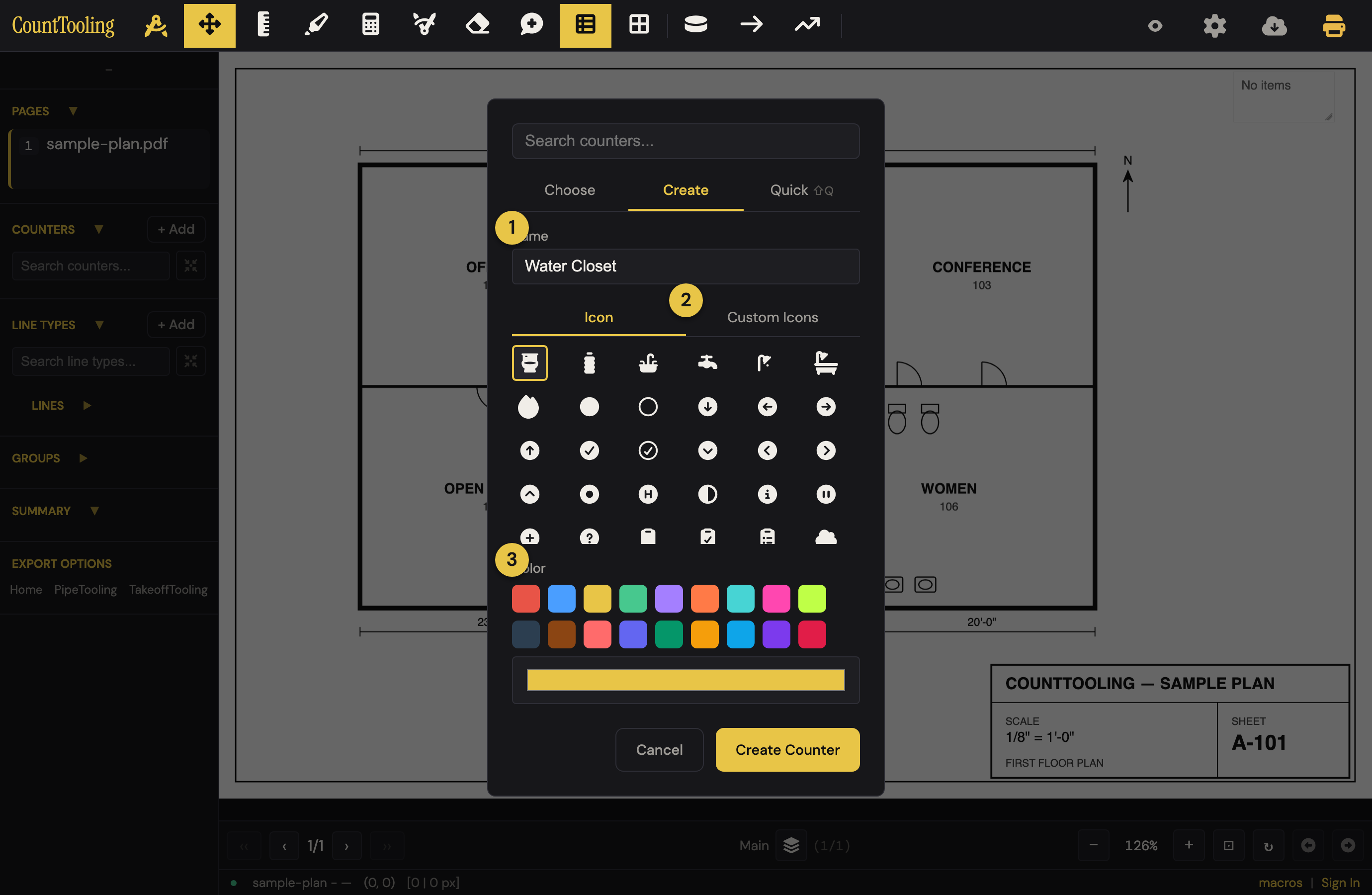
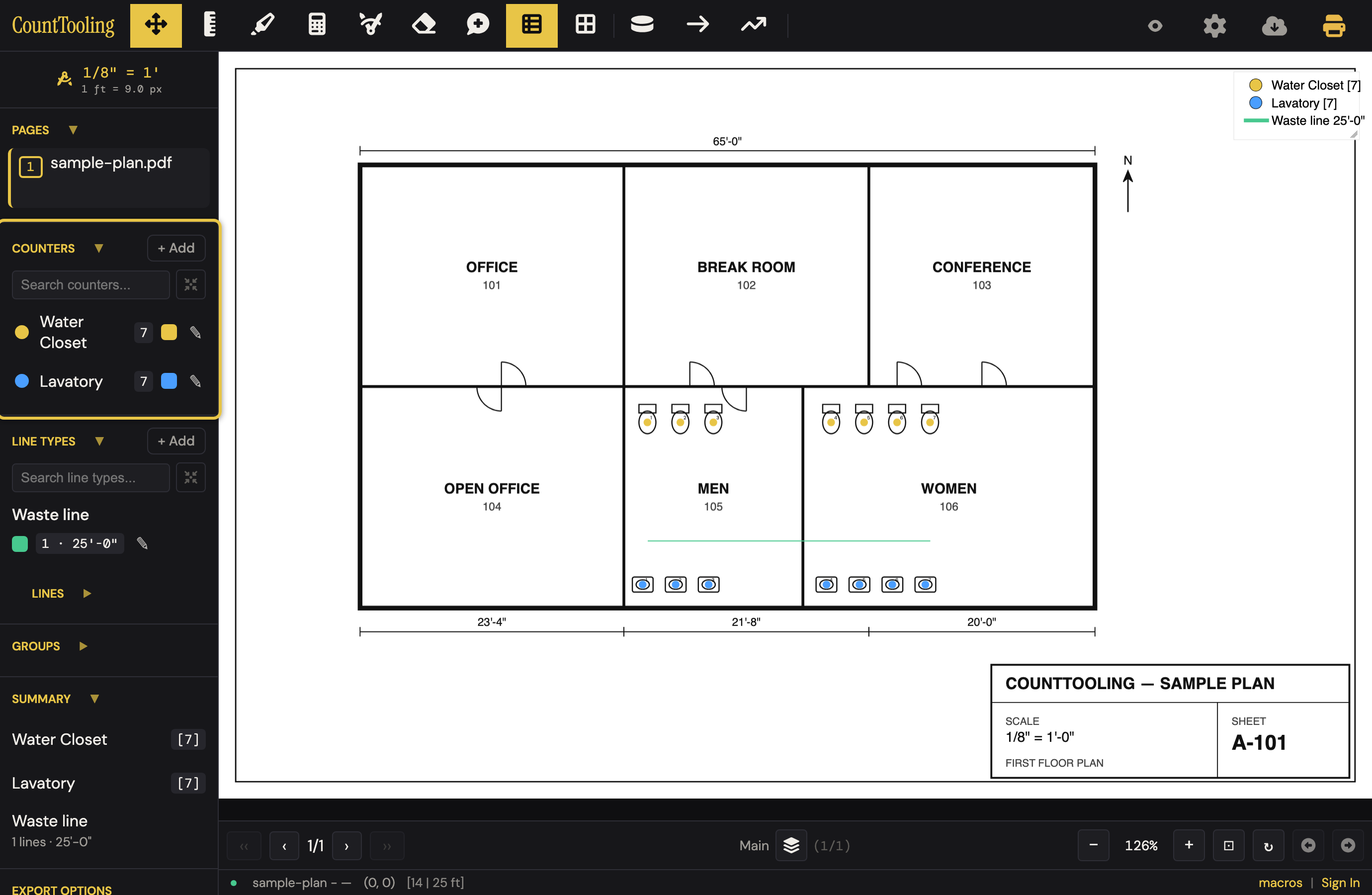
Create a counter for each fixture type: ① name it, ② pick an icon (or upload your own), ③ choose a color. Then click each fixture on the plan.
The tally updates live in the sidebar as you click, rolled up across every sheet. Group related counters together to keep a busy sheet organized.
4. Measure the runs
Make a line type per kind of run: ① name it, ② straight or curved, ③ color. Then trace with Line or Polyline . CountTooling reads the real length off the scale you set.
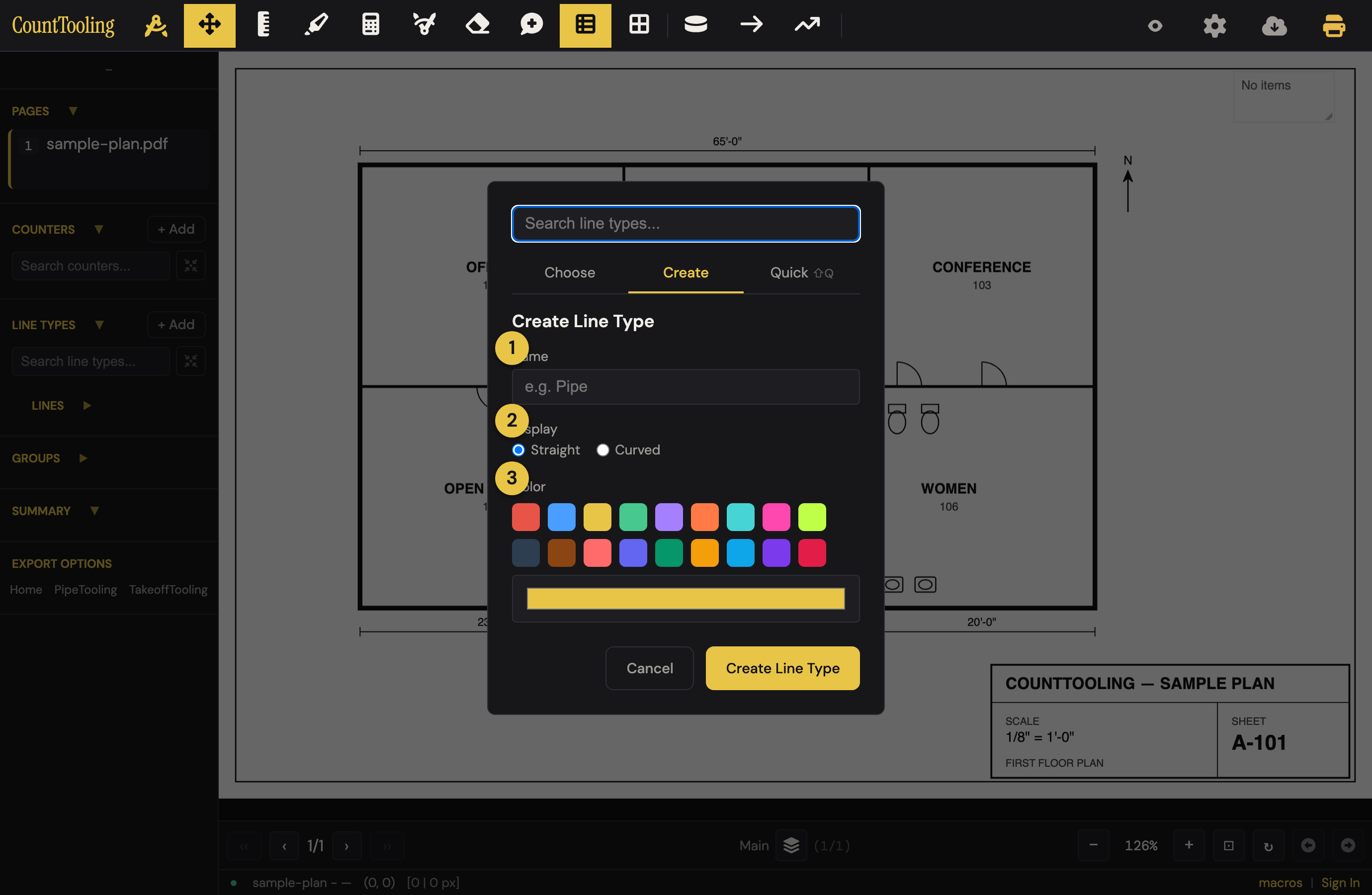
Use arcs for curved runs and drops where a run changes elevation, and press J to snap segments to the 45° angles real runs take. Need a quick one-off distance? The Measure tool gives it to you in two clicks.
5. Annotate
Add highlights and notes to flag anything that needs attention, and turn on the grid with snapping for clean, aligned lines.
6. Review the summary
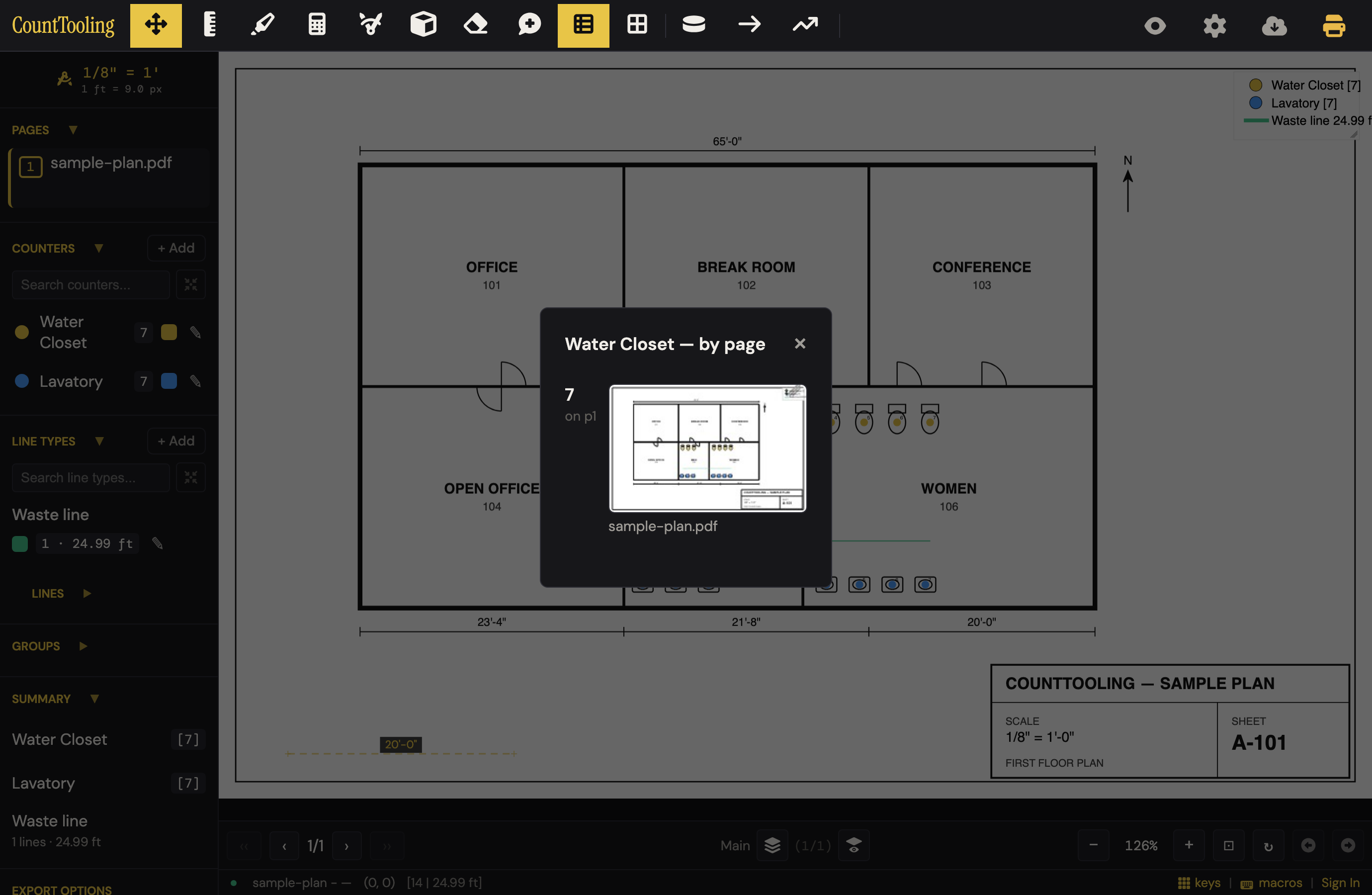
The on-canvas legend shows your counts and lengths by type as you work. In the sidebar Summary, click any total for a per-page breakdown with thumbnails: proof of exactly where every item was counted. Open Show Report for the full breakdown across pages and canvases.
7. Export and share
When you're done:
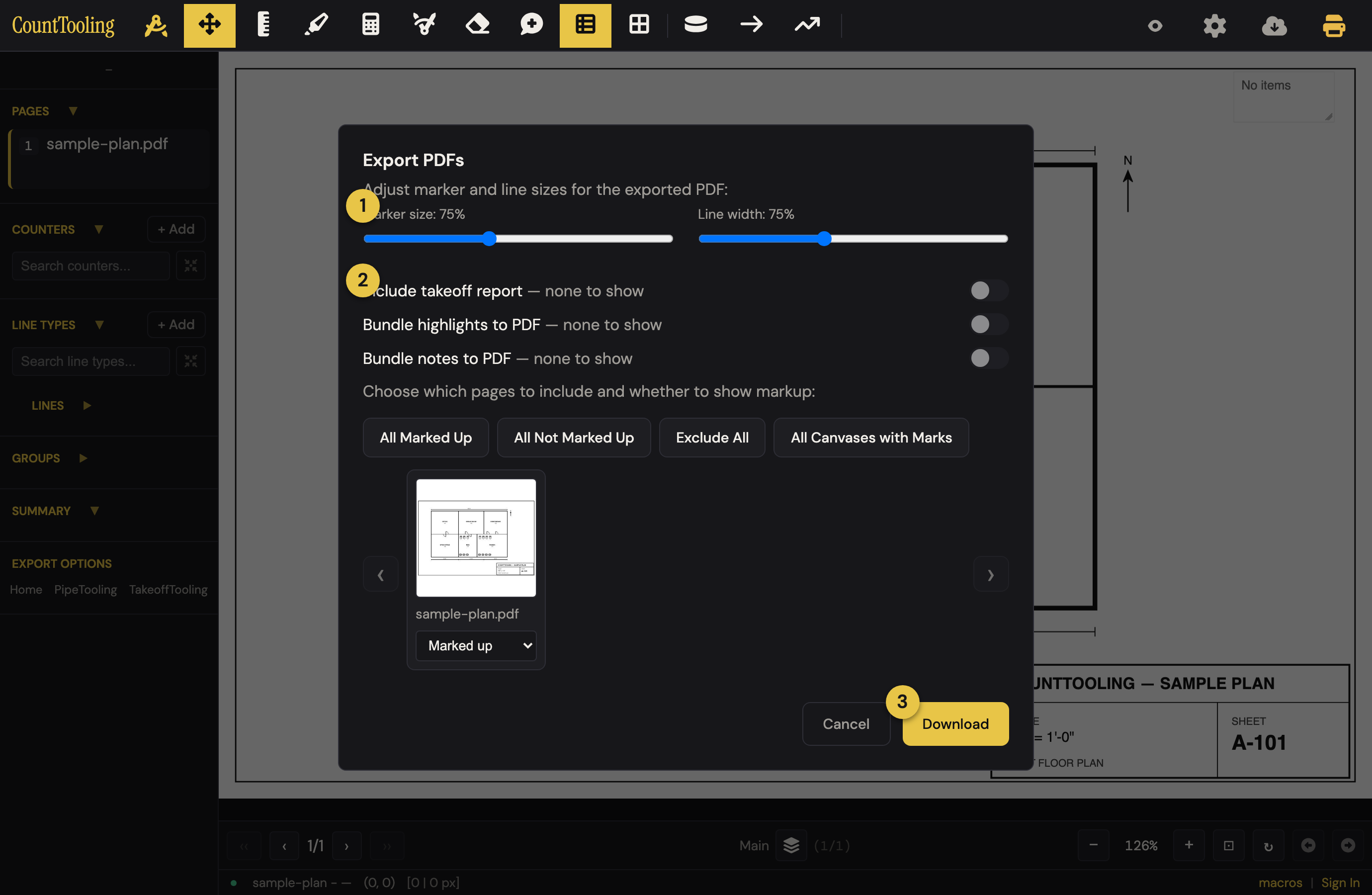
- Export PDFs with your markup, the takeoff report, and any highlights and notes baked in.
- Copy to /Tooling to drop the counts straight into a bid, or copy a summary for email, tab-delimited and ready to paste.
- Need someone to see the live takeoff instead? Send a view link, no account required on their end.
That's a complete takeoff (counted, measured, reported, and shared) without leaving the browser.