Is your scale lying to you?
A preset scale like 1/4" = 1' is an assumption: it's only right if the PDF's page is still the true physical sheet size it was drawn at. Plenty of real-world PDFs aren't; they've been "compressed", re-boxed, or re-plotted at a smaller size somewhere along the way. On a half-size page, that preset reports a 10-foot wall as 5 feet, and nothing looks wrong until the bid is.
Try it: the Scale lesson opens sample sheets in the app and walks this with you, two or three minutes, checking each step against what you actually did.
CountTooling has three layers of defense. Use them.
1. The sheet-size warning (automatic)
When you open the Set Scale presets tab, the app compares the page against standard sheet sizes (ANSI, ARCH, ISO). If the page matches a standard sheet, nothing changes; your preset applies as-is.
If it doesn't match, a yellow warning appears with a sheet picker, defaulted to the app's best guess of what the sheet was originally.
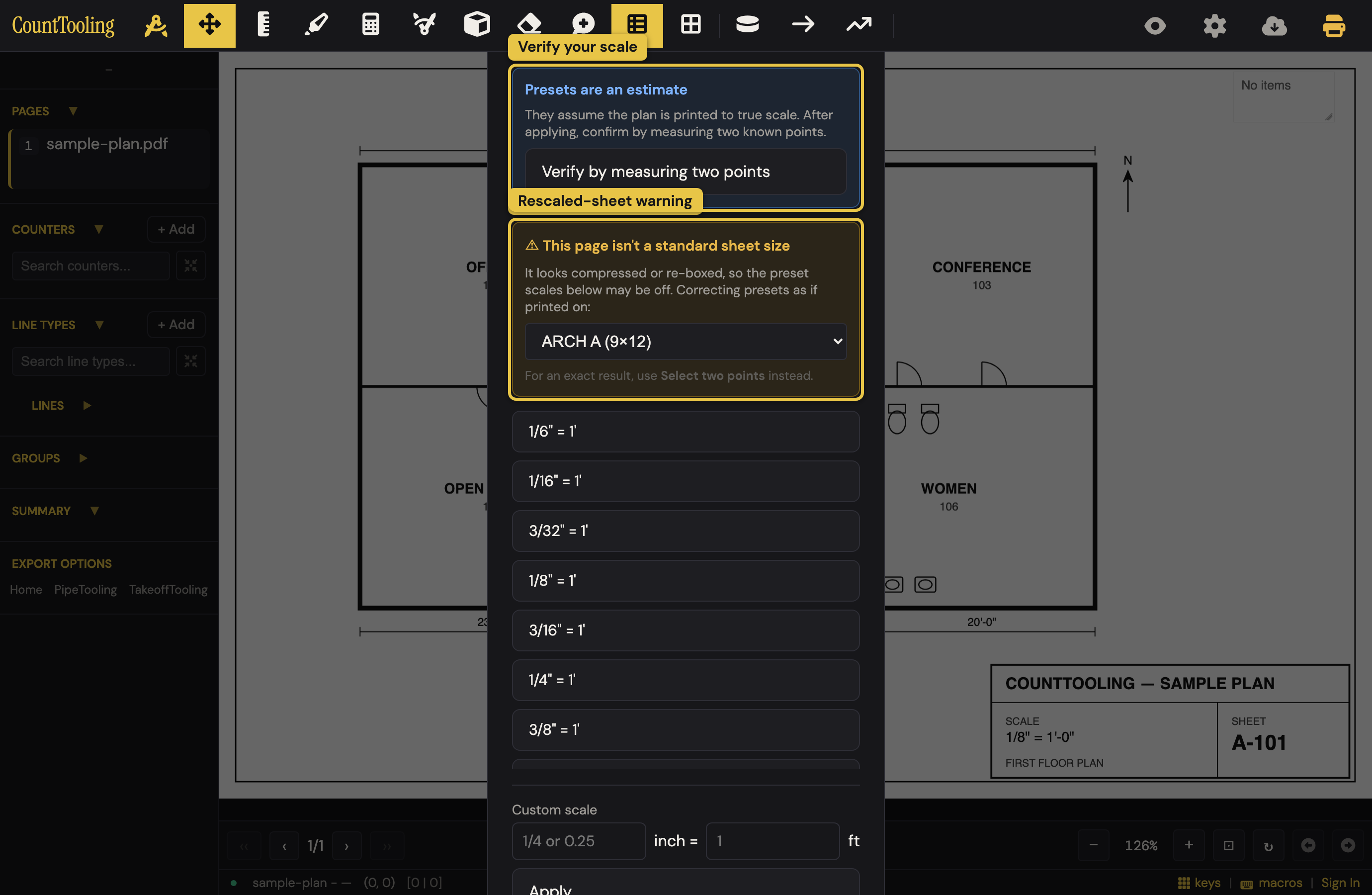 Apply a preset with the picker set, and the scale is corrected by the rescale ratio automatically; the scale label carries the sheet name (e.g.
 · ARCH D) so you can see the correction was applied. That suffix stays on the sidebar scale readout (1/8" = 1' · ARCH D): it means "corrected as if this page were printed on an ARCH D sheet". Treat it as a standing reminder: whenever you see a sheet-name suffix, verify a known dimension on that page before trusting its numbers.
The correction is still a guess, so a corrected apply now walks you straight into the verify check: the dialog closes and the app asks you to click both ends of a printed dimension to confirm the scale. Esc keeps the applied scale; if the guess was right (a genuinely compressed print of that sheet), you lose nothing. Why it matters: on one sample plan, a wrong ANSI-D guess made a printed 67'-4" wall read 179'-4", every length 2.67× long, silently. The check catches that in one pass.
If the page truly isn't a standard sheet (a cropped detail, a scanned sketch), pick "Non-standard, don't correct" at the bottom of the sheet picker: the preset applies uncorrected with no check, exactly as on a standard sheet.
2. Verify by measuring (thirty seconds, worth it)
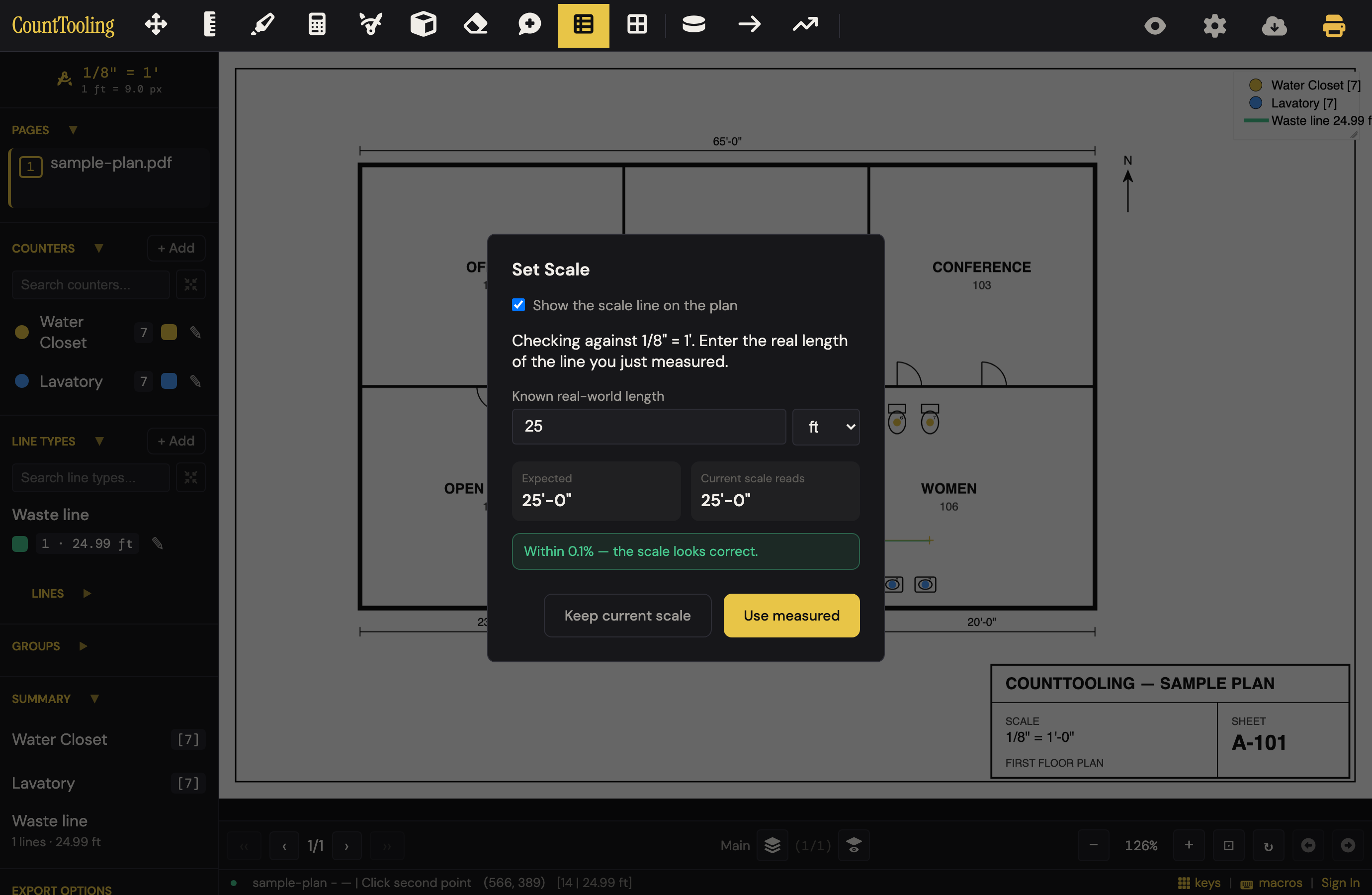
Any time a preset or custom scale is set, a blue advisory in the scale dialog offers Verify by measuring two points:
- Click two points a known distance apart: a dimension line, a door width, a grid spacing.
- Enter the known length.
- The app shows what the current scale reads for that distance, next to the expected value, with the % error, green when it's under 1%.
From there, Keep current scale if it checks out, or Use measured to recalibrate from your two points (the same math as two-point calibration, which is always ground truth).
After Use measured, or any two-point calibration, the scale readout shows the measured line itself (1 ft = 9.0 px) instead of a preset name. That's by design: the scale came from the drawing, not from a chart, so there's no fraction to display, and the dashed reference line stays pinned on the plan where you measured, as the receipt.
3. The on-sheet scale bar (passive check)
For preset and custom scales, the app draws a dashed reference bar of a round length (1 ft, 5 ft, 10 ft…) near the corner of the page (the same "show the scale line on the plan" toggle used by two-point calibration). Glance at it against anything you know on the drawing: if a 10-foot bar spans a 20-foot corridor, the scale is wrong.
This matters most in the one case detection can't catch: a compression that lands exactly on another standard sheet size (a half-size ARCH D is a perfect ARCH B). The warning stays silent, but the scale bar won't look right.
Rules of thumb
- Two-point calibration is immune to all of this: it derives scale from the drawing itself. When a sheet has a trustworthy dimension, prefer it.
- Verify at least one sheet per plan set, and any sheet whose numbers feel off.
- A wrong page scale also flows into scale zones comparisons and every export; catching it early is the whole game.
Related: Setting the scale on a plan covers the three calibration methods themselves.