Setting the scale on a plan
Scale is what turns pixels on a PDF into real feet and inches. Until you set it, CountTooling can count fixtures but can't measure runs. Scale is per page, so each sheet can have its own.
Try it: the Scale lesson opens sample sheets in the app and walks this with you, two or three minutes, checking each step against what you actually did.
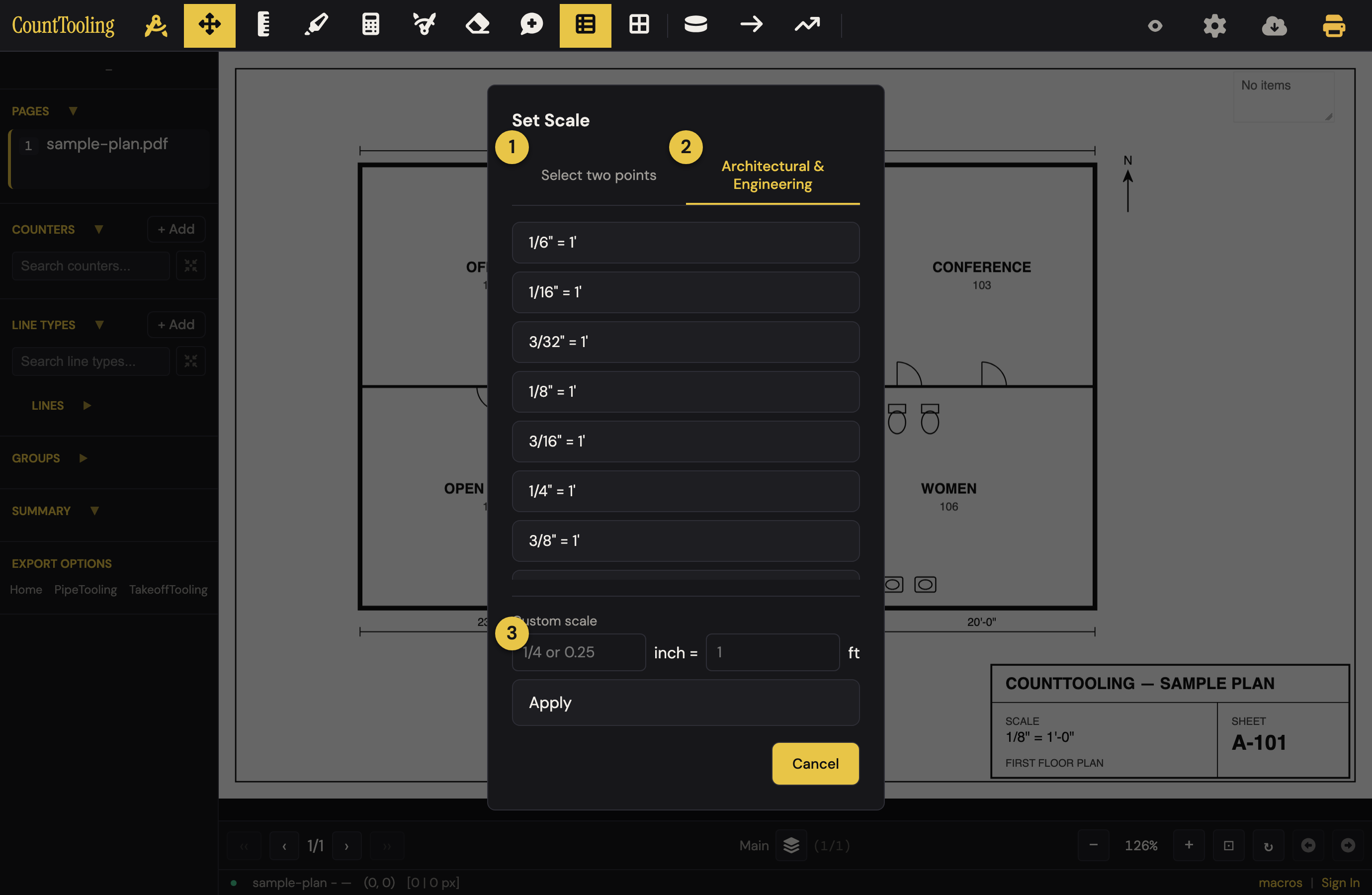
There are three ways to set it: ① two points, ② a preset, or ③ a custom value.
Set scale from two points
The most reliable way is to calibrate against something you know:
- Pick the Set Scale tool.
- Click two points a known distance apart: a dimension line, a door width, a grid spacing.
- Enter the real-world length (for example
3'or10 ft).
CountTooling works out the scale from those two points, so it stays accurate even if the PDF was exported at an odd size.
Use a preset
If the sheet is drawn at a standard ratio, skip the two-point step and pick a preset:
- Architectural:
1/4" = 1',1/8" = 1', and the rest of the common set. - Engineering:
1" = 20',1" = 40', and so on.
On a non-standard (rescaled) sheet, applying a preset or custom scale flows straight into the two-point verify check: click both ends of a printed dimension to confirm it, or press Esc to keep the applied scale. See Is your scale lying to you?
Enter a custom scale
You can also type a scale directly (a fraction like 1/4 or a decimal like 0.25) and apply it. Useful when you know the ratio but don't have a dimension to click.
Change a scale you've already set
Once a page has a scale, the header's Set Scale button doesn't go away: it reads the value (1/4" = 1') and stays a button. Click it to re-open the dialog where the scale was set: a preset comes back with that preset marked, a custom scale with your fraction and feet already in the fields, a two-point scale on the points tab offering to measure again. The sidebar readout under it opens the same dialog. If you were mid-way through a line or polyline when you pressed S, the half-drawn run waits for you and picks up where it was when the dialog closes.
Tips
- The scale badge on each page in the sidebar turns yellow once a scale is set, so you can see at a glance which sheets are calibrated. Sheets with a scale also count as marked for the Shift+←/→ marked-page navigation.
- If a single sheet mixes scales (a detail blown up in the corner), you don't have to re-scale the whole page; see Scale zones and multiply zones.
- Try to measure something before you trust a takeoff. If a known 3-foot door reads as 4 feet, your scale is off: reset it and pick cleaner points.
Once the scale is set, you're ready to measure runs.