Working faster with the keyboard
Placing a mark is one click. What slows a takeoff down is everything between the clicks: switching tools, switching counters, trips to the sidebar. All of that has a key.
Try it: the Working faster lesson opens sample sheets in the app and walks this with you, two or three minutes, checking each step against what you actually did.
The shortcut list and the Keyboard Map
Click shortcuts in the bottom-right status bar to open the full shortcut list. On desktop, a keyboard map sits right at the top of it: every key that does something lights up yellow, and hovering a lit key tells you what it does. On a phone or tablet, tap See Keyboard to open the same map.
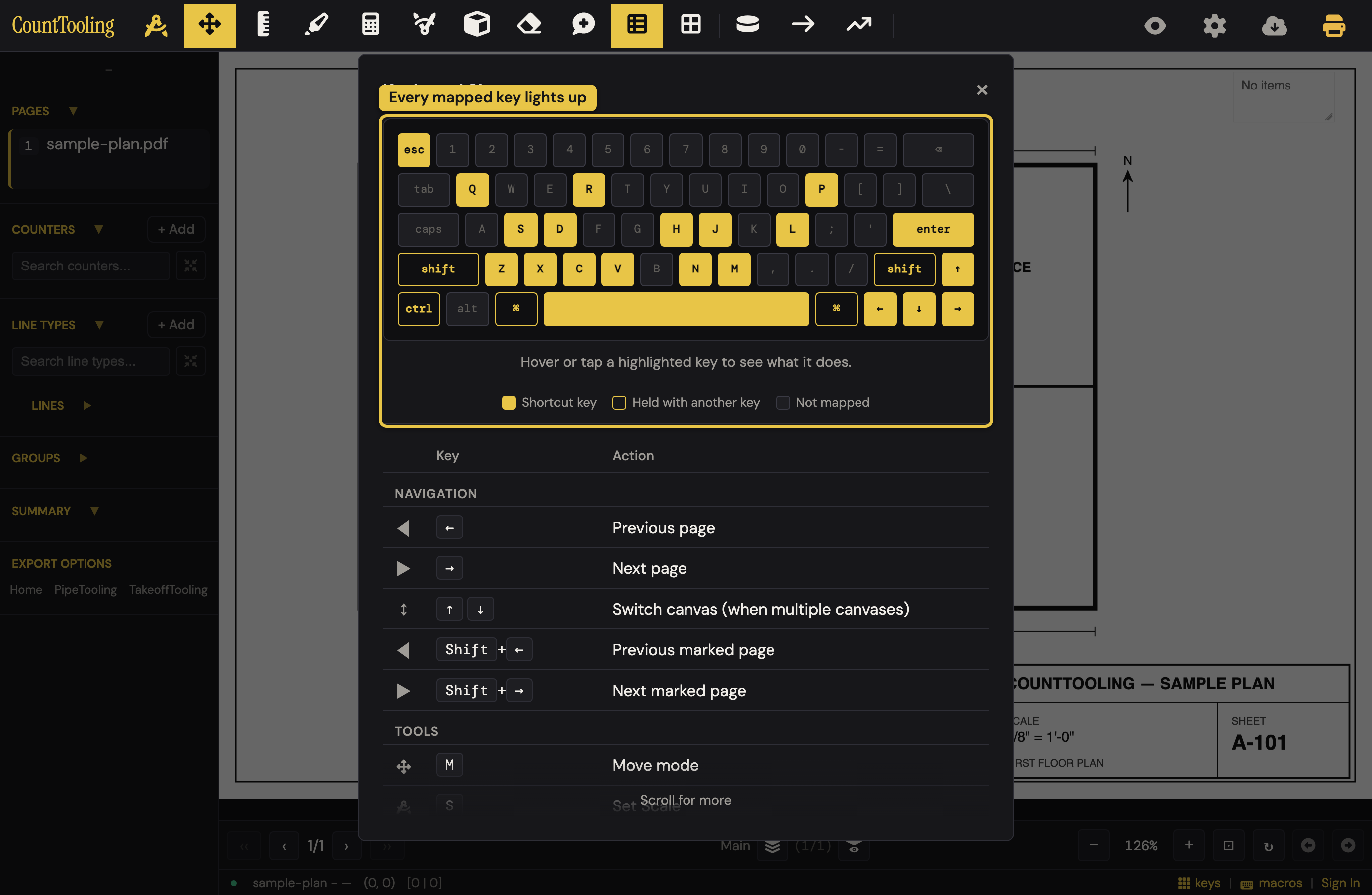
The ones worth learning first:
| Key | Does |
|---|---|
M |
Move / select (drop the current tool) |
S |
Set Scale |
C |
Counter mode |
L |
Quick Line |
P |
Polyline |
U |
Duct run (while tracing, S steps the duct size) |
D |
Measure |
H |
Highlight |
N |
Note |
V |
Room Sizer |
X |
Multiply Zone |
R |
Rotate page |
← → |
Previous / next page (Shift jumps between marked pages) |
Ctrl+Z / Ctrl+Shift+Z (or Ctrl+Y) |
Undo / redo (Cmd on a Mac); the history keeps your last 50 steps |
Esc |
Cancel / close |
Quick Keys: your counters and line types on the number row
The biggest time sink on a busy sheet isn't placing marks; it's changing what you're placing. Quick Keys puts your own counters and line types on the number row.
- Click quick keys in the status bar (next to shortcuts).
- One key in the strip at the top is lit. Click a counter or line type in the list and it goes on that key, and the next empty key lights. Click any key to light it instead. The list shows each item's symbol, its colour, how much of it the project has placed (those come first) and the key it is already on.
- On a big palette, type in the search box. It reads names loosely, so
wc1finds WC-1, and it keeps your word after a pick: typesk, then press Enter three times to put SK-1, SK-2 and SK-3 on three keys. The arrow keys move up and down the list. - Done. Press
1while marking up and you're placing that counter; press2and you're drawing that line type. Press the same key again to deselect.
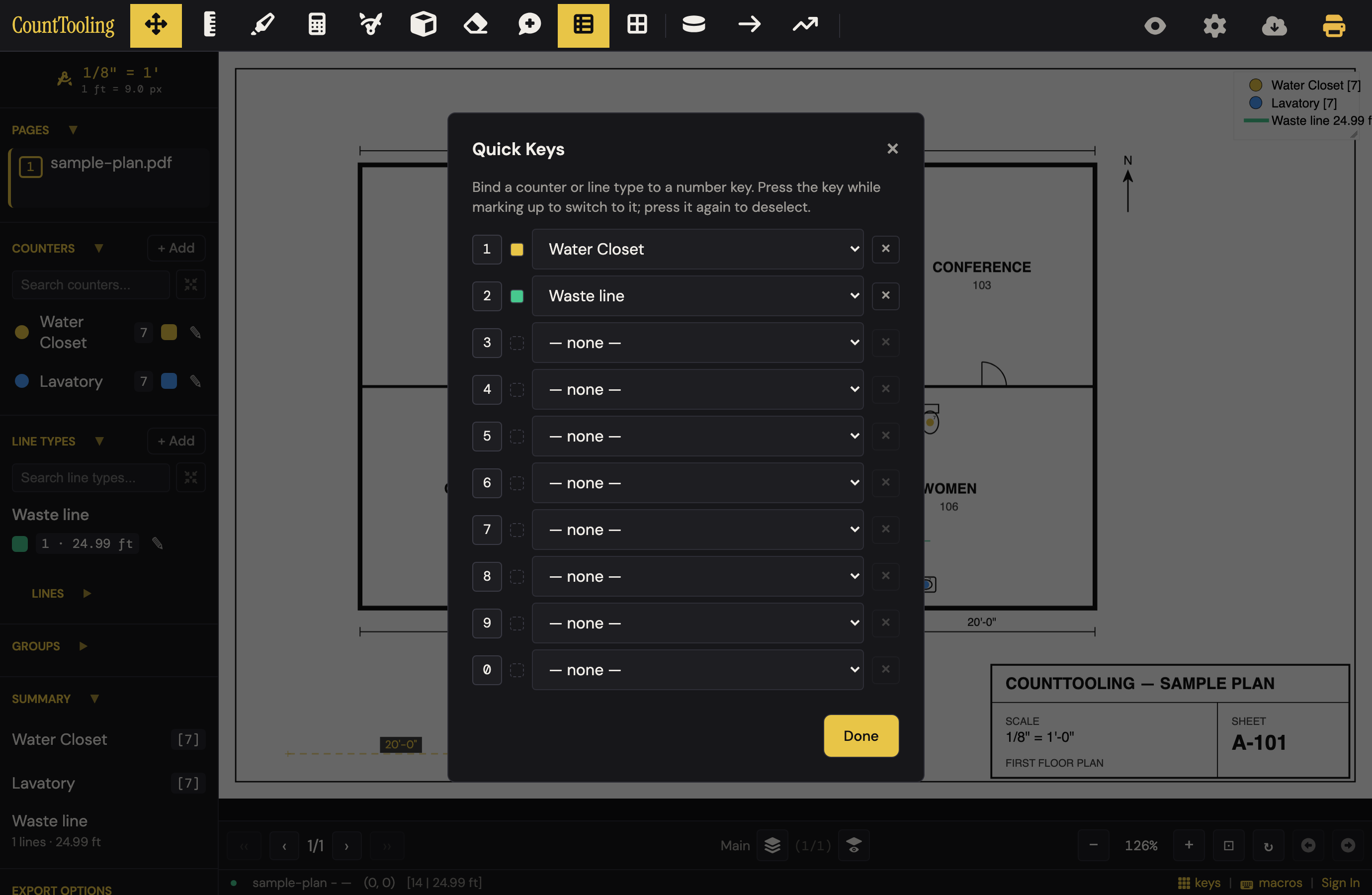
Bound items wear their digit as a small badge in the sidebar, so you don't have to memorize the layout, and bound keys light up on the keyboard map with their names. Bindings are saved with the project. If you keep a standard palette in your saved Artboard, the same bindings work bid after bid.
Right-click a tool for its settings
Every tool button answers a right-click with a small menu of its actions, Counter and Line offer their settings plus a quick "Add…", Legend, Grid, and Multiply Zone open their settings directly, and Move and Measure offer Set / edit scale: the fastest way back to a page's scale once it's set, right where you notice it's wrong. No hunting through menus. (Building palette items fast is its own trick; see Building your palette in two clicks.)
45° snap for straight runs
Toggle J (or the snap button in Line Type Settings) while drawing
lines or polylines and every
segment locks to horizontal, vertical, or a 45° diagonal, the angles real
plumbing and conduit runs actually take. Toggle it off for freehand tracing.
Let the plan pick the counter
Toggle A (or the Auto-pick pill beside the Counter button) and a click
beside a tag the plan prints, a B beside a light or an FS-1 beside a floor
sink, lands on the counter that carries that tag, with one counter armed for all
of them. A ring and the counter's own icon mark the tag before you click, only
when the click is about to land somewhere other than the counter you armed. A
counter whose name says the tag keeps it, so 3IN FD stays 3IN FD beside an
FD. It's off until you turn it on, and stays the way you leave it on this
device.
One workflow, both hands
A fast rhythm looks like this: left hand on the keyboard (1, place, place,
2, trace, Enter, → next page), right hand never leaving the mouse. Set up
Quick Keys once at the start of a bid, and the sidebar becomes something you
glance at, not something you visit.