Doing an electrical takeoff
An electrical takeoff is device counts plus linear footage: receptacles, fixtures, and switches on one side; conduit, feeders, and homeruns on the other. CountTooling does both on the plan itself, then derives the wire from the conduit and checks the result against the code tables.
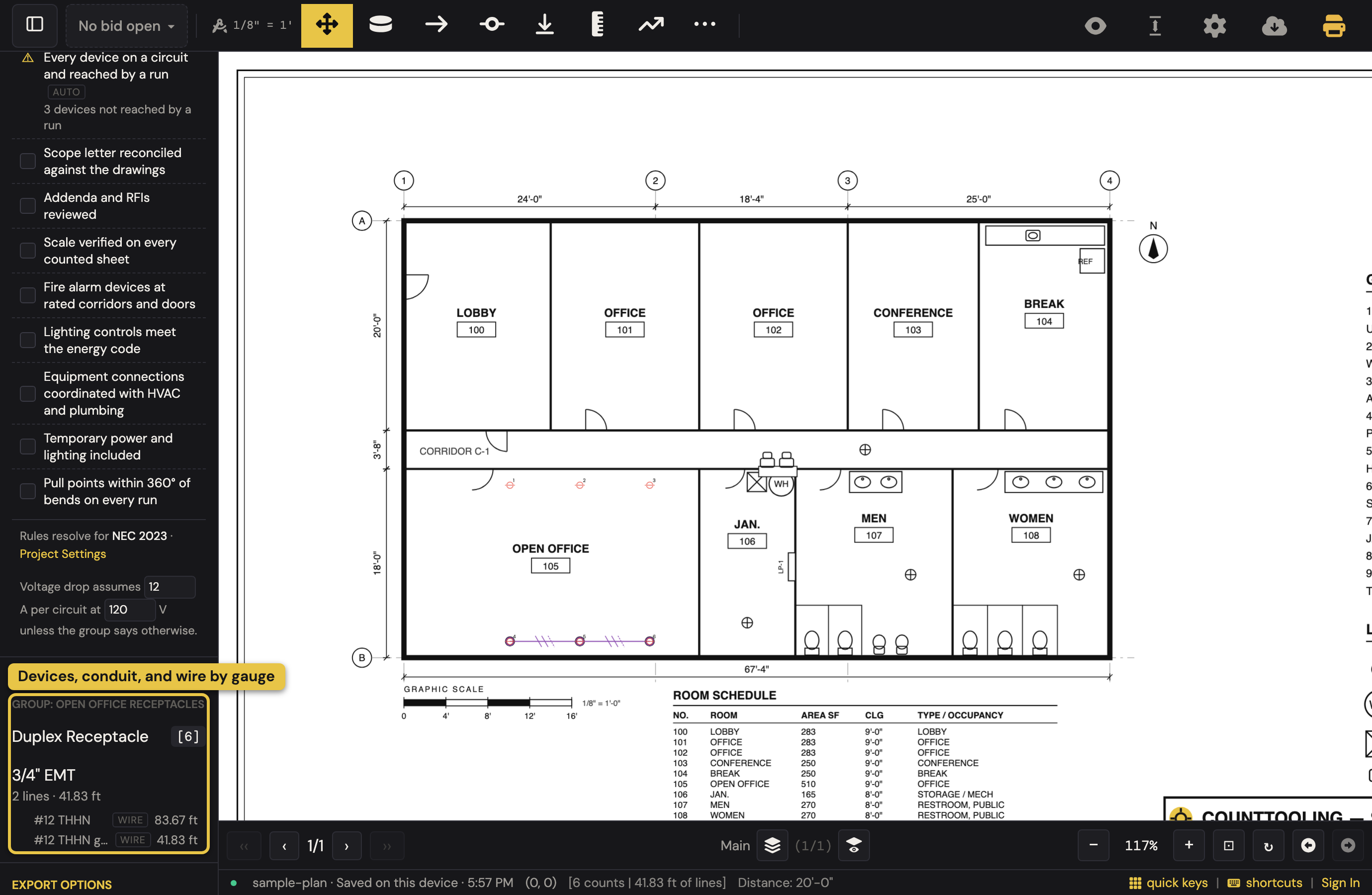
New here? Open the app with nothing loaded and click electrical under take the five-minute tour (or open it directly: the electrical tour). It walks this article on the sample plan (set and prove the scale, switch the trade, add a duplex receptacle, count three, make a 3/4" EMT type with its conductors, set the ceiling, chain a run with its verticals, make it circuit LP-1 / 7, read the wire, open Bid Check, hand it off). It circles where to click on the sheet, checks each step against what you actually did, and Show me where points at anything you cannot find. The picture below is the takeoff that tour ends with. For the why as well as the how, the electrical course is nine chapters on the same restaurant's electrical set: which receptacles the code wants GFCI, where the panel may sit, why the far circuit wants bigger wire, and the app's own checks against the tables (Learn CountTooling by doing lists them).
Set the trade to Electrical
Open the Counter modal's Quick tab and switch the Trade control to Electrical (Project Settings has the same switch). That one click changes what the app speaks: the Quick creator's pickers become Category / Variant / Rating ("Duplex Receptacle 20A" assembles itself), each variant comes with its E-sheet symbol (duplex, quad, GFCI, the S / S3 / S4 switch family, troffers, downlights, exit and emergency, panels, J-boxes, data, fire alarm) and its mount height (18" receptacle, 44" GFCI at a counter, 48" switch, 78" panel top), which you can overwrite before you Add. The choice is per project and remembered as your default for the next bid. A plumbing bid sees none of this.
Count the devices
Make a counter per device type (receptacles, switches, fixtures by type, data drops, panels), each with its own color and symbol so the sheet stays readable (the electrical set ships with the app; upload your own SVG symbols to match a fixture schedule). Then click through the sheet; every click is one tally, rolled up across the whole set.
- The plan picks the fixture type. Lighting is counted by the letter beside the symbol, and on a real (not scanned) PDF that letter is text the app can read. Turn on Auto-pick (the pill beside the Counter button while a counter is armed, or press
A): near a letter B a ring marks it, the status bar says Plan says B, and the click lands on your Type B counter, one armed counter for every fixture type. A counter whose own name says the letter keeps the click, so a "B emergency" variant still counts as itself. No Type B yet? Press Enter and it is created. Auto-pick is off until you turn it on, and stays the way you leave it on this device. To build the whole palette at once, open the Counter dialog's Create tab and choose Read a schedule from the sheet…, then drag a box over the fixture schedule: every "tag + description" row becomes a counter in one confirm. - Groups are circuits. Give a group a panel and circuit number ("LP-1 · 7") in the group dialog and it becomes a circuit: the report's Circuit schedule lists each one with its devices, conduit, homerun and wire feet and the farthest device from the panel along the runs. Make your panel counter a panel (name + the schedule's pole count) and the app checks circuits on plan against the schedule, "LP-1 · 31 on plan · 42 scheduled ⚠" catches the homeruns you have not drawn yet. Flag the run to the panel as a homerun (on the line type, or one run in Line Properties) and it draws the arrow with the circuit tag. With a circuit selected, the Chain tool puts every device and run on it; with none selected, a chain continues the circuit of the run it extends.
- Quick Keys put your device types on the number row:
1places receptacles,2places switches, and your hands never leave the plan.
Measure conduit and cable runs
Trace runs with Line and Polyline against the page scale. Six details matter for electrical:
- Vertical by default. Set the Ceiling height once in Project Settings (a Room Sizer room overrides it where you have drawn one). Then chain devices with the Chain tool (press
T): every tap places the device, draws the run back to the previous one, and writes the vertical (ceiling minus the device's mount height plus a foot of make-up) as an ordinary drop on that run. Six receptacles under a 10' ceiling is 57 ft of conduit nobody typed; the footer tells you the drop each tap is about to add, and every drop stays editable per run. - Drops by hand still add vertical footage anywhere else a run turns up a wall or rises between floors, the footage plan-view takeoffs systematically miss.
- Conductors on the run. Open a line type's details and give it a raceway (3/4" EMT, 1" PVC, MC…) and its conductors in the shorthand you already write,
2 #12 THHN + 1 #12 Gfor one 120 V circuit (the hot, the neutral and the ground). From then on every run of that type tallies its conduit feet as before and its wire by gauge, rolled up across the whole bid ("#12 THHN 314 ft, #12 THHN green 157 ft"); an MC or NM type tallies one cable row ("MC 12/2 w/G") instead, because the conductors are inside. One run carrying more (a shared homerun) gets its own list in Line Properties. The sheet draws one tick per conductor across the run, the way the E-drawing does, the neutral longer, the ground dashed. Low voltage: give a data-drop counter cable per count (150 ft of Cat6) and every placement adds it. - Fittings from bends. In a line type's details, turn on Fittings from bends and every bend in a traced run counts the fitting nearer its angle (a 45 or a 90), with each drop at an end counting a 90: the elbows on a rigid or PVC run, counted from the run itself and shown as a small chip at each bend. Where a jog is only routing around text, right-click that vertex while editing the run and choose No fitting here.
- Snap to 45° (
J) keeps traced runs on the horizontal, vertical, and 45° paths conduit actually takes. - Line types per run type: homeruns, branch, feeders, low-voltage, so the totals break down the way you price them.
Typical floors
A high-rise with ten identical floors: count one, wrap it in a multiply zone set to ×10, and every device count and conduit length inside multiplies in the totals; the marks stay clean, the math is automatic.
Bid Check before you send it
The Bid Check section in the sidebar (collapsed until you open it; the badge counts what is open) is the app saying what it knows and asking what it cannot. With conductors on your line types and circuits on your groups, it computes the checks you used to do beside the app: conduit fill against the table limit, with the size that passes when one does not; voltage drop to the farthest device on each circuit, with the gauge that passes ("LP-1/7 · 112 ft · 12 A · #12 4.4% ⚠ → #10 2.8% ✓" is more copper on every circuit like it); circuits on plan against the panel schedule; and every device on a circuit and reached by a run. Below them are the judgment calls only you can make (addenda reviewed, fire alarm at rated corridors, lighting controls, temporary power) as ticks that persist with the bid. Export or hand off with items still open and a note tells you so; it never stops you. Each computed row carries a § chip (NEC Chapter 9 for fill, NEC 210.19 for voltage drop) that opens the rule in the public rulebook; Project Settings picks the code edition the rules resolve for.
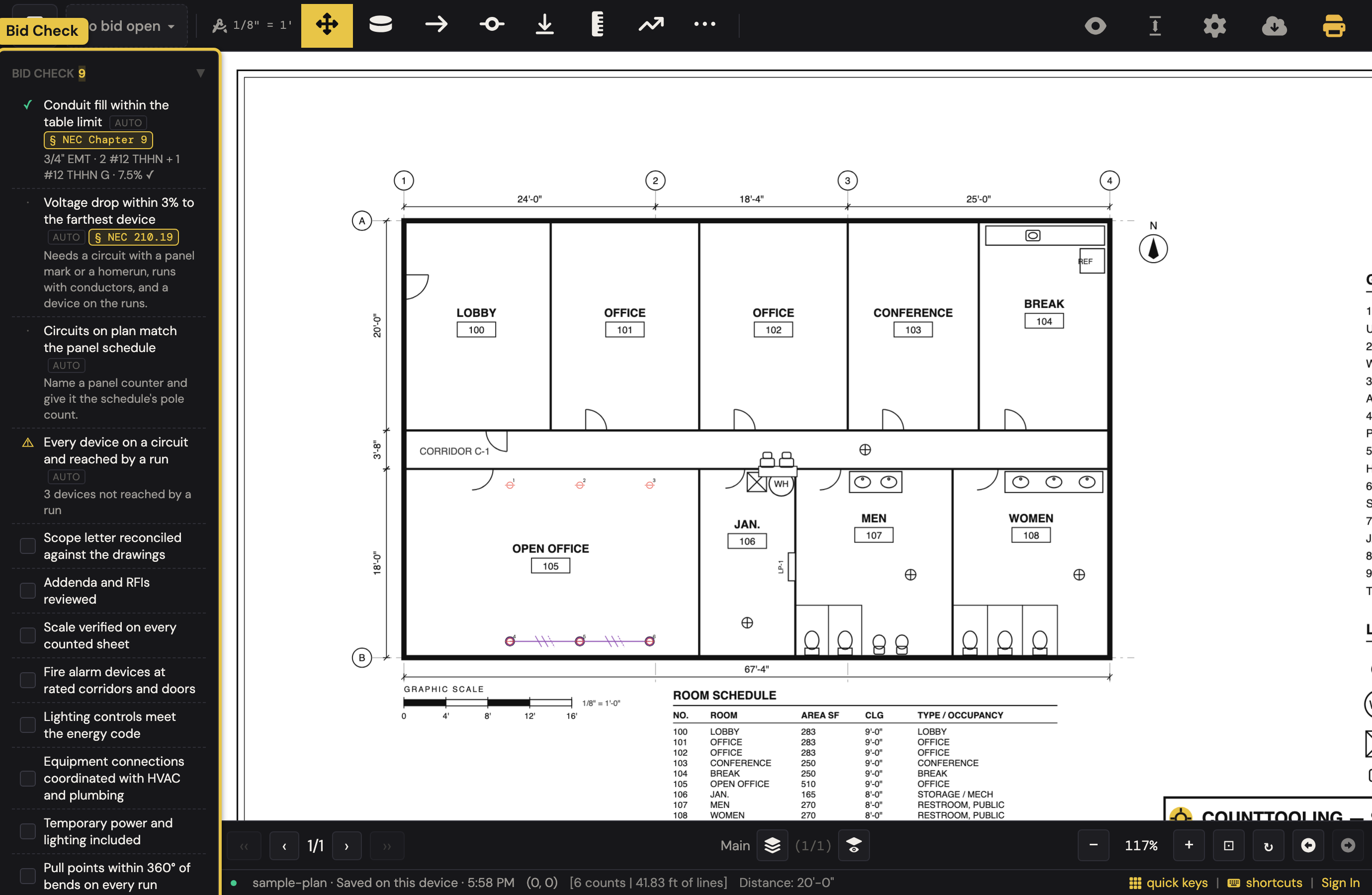
That warning is the point of the section. The tour counts three receptacles and then chains three more; the first three were never wired, and Bid Check says so before the bid goes out.
Deliver the numbers
- The legend on an electrical project draws as a compact ruled block, the way an E-sheet's own legend does, with a mount-height column and the panel in its footer (click the gear beside the Summary heading to open Summary Legend and switch it to the tally or the full style); Show Report gives the full breakdown by type and page.
- Export PDFs produces the marked-up deliverable with the report attached.
- Copy Summary (Email/Text) puts a clean text tally in an email; totals are always decimal feet regardless of each sheet's scale unit.
- Open in TakeoffTooling hands the devices, runs, drops, wire and cable to the electrical pricing app, where each device explodes into its box, ring, plate and connectors and every row picks up labor and price from your book, waste included. CountTooling stops at what the drawing knows.
New to the tool? Start with How to do a takeoff from a PDF; the workflow is the same for every trade.